
Credits
Credits is your personal account screen for two things CoachEye meters separately: cloud storage for your session videos and credits that power AI processing (analysis jobs that read your footage and produce insights). Everything you need to see usage, limits, and recent consumption lives on this one page—so you can train and review video without surprises.
Why this page matters
Video analysis and AI features consume credits each time they run. Recordings and derived analysis also consume storage. When you open Credits, you see how much you have left, how fast you are spending it, and what kind of content is using disk space—not just a single number at the top of the app.
That matters on heavy training weeks: you can spot rising daily usage early, understand whether storage is mostly raw Videos versus Analysis outputs, and use Buy more before you hit a hard limit mid-session.
How to open Credits
- Tap your profile control in the header (avatar or name—exact styling follows your build).
- Choose Credits from the menu.
You land on a full-screen Credits view with a back affordance to return to where you were.
What you can do here
- See your total available credits and how they relate to your monthly plan (included allowance and reset timing when the product shows it).
- Review usage this month, credits remaining on the plan, and average daily burn—useful for pacing heavy analysis days.
- Track monthly credit consumption against the included allocation (progress and percentage used).
- Monitor storage: total used versus included gigabytes, split into Videos, Analysis, and Other so you know what is filling the bucket.
- Scan recent activity: which AI jobs ran (for example motion analysis), how many credits they cost, and links back to recordings when offered.
- Start Buy more when you need additional credits or capacity (exact purchase flow depends on product configuration).
Page layout at a glance
The header keeps context compact: Back, title Credits, a balance chip with your current credits, and Buy more — the latter opens the purchase surface shown in Figure 4.
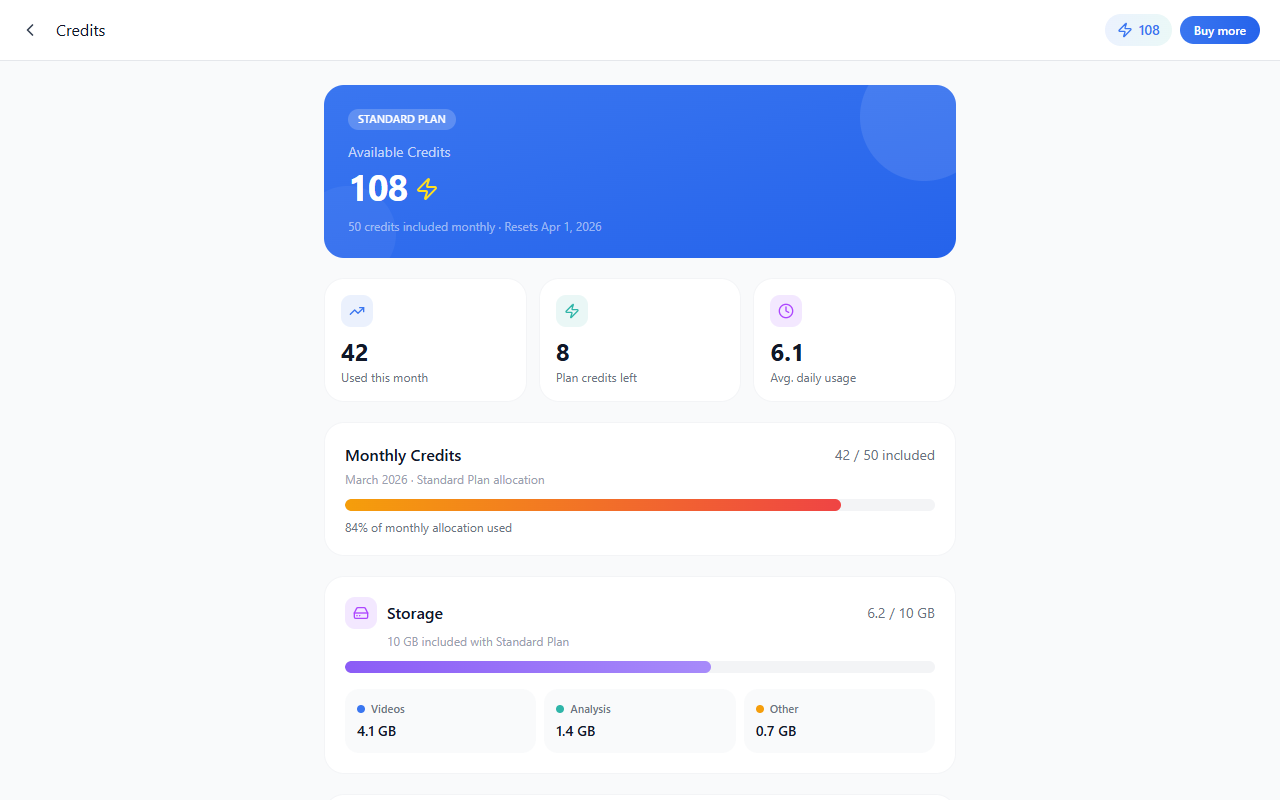
Scrolling down brings Last 7 days, then Activity, then flows such as buying more (Figure 4).
Understanding available credits
The large top card answers: how many credits you can spend right now on AI processing. It is labeled with your plan (for example Standard Plan) and typically repeats how many credits ship with the plan each month and when that monthly bucket resets. The lightning-style icon matches AI credit semantics elsewhere in the product.
Treat this number as your working balance for new analysis—not the same thing as “included monthly credits left,” because purchases or bonuses can change the headline total.
The hero card is visible in Figure 1.
Summary tiles
Three compact tiles interpret the same account at a glance:
| Tile | What it tells you |
|---|---|
| Used this month | Total credits consumed in the current billing window—helps you compare against long-term averages. |
| Plan credits left | What remains from the included monthly allocation before add-ons—useful when you are trying to stay inside the base tier. |
| Avg. daily usage | Smoothed consumption rate—if this creeps up week over week, your capture or analysis habits may be shifting. |
Together they explain headline balance versus monthly burn pattern (Figure 1, stat row).
Monthly Credits section
This block focuses on consumption against the included monthly allowance—for example 42 / 50 included with a subtitle naming the period (March 2026) and plan text. The progress bar shows how much of that allowance you have used; the footer line states the percentage of monthly allocation used.
Use it when you need to answer: “Am I about to exhaust my included credits before the reset?” If you mostly buy top-ups, still read this section—it explains plan-shaped consumption even when your Available Credits total is higher.
The progress bar and included / used counts appear in Figure 1 under Monthly Credits.
Storage for your videos and analysis artifacts
CoachEye separates disk usage from credit count. The Storage row shows used GB / included GB (for example 6.2 / 10 GB) and reminds you how many gigabytes come with your plan.
The bar shows overall fullness of the storage allowance. Beneath it, three chips explain where the bytes live:
| Category | Typical meaning |
|---|---|
| Videos | Raw or uploaded session recordings—usually the largest share when you film often or at high quality. |
| Analysis | Outputs from AI processing—structured breakdowns, overlays, cached model results tied to sessions. |
| Other | Supporting assets or data that do not fall cleanly into the two buckets above (exact rules depend on implementation). |
If Videos dominates, trimming old captures or exporting archives may help. If Analysis is large, you may be stacking deep AI passes across many sessions—pair this view with Monthly Credits to adjust how often you run heavy jobs.
The Storage card and category chips (Videos, Analysis, Other) are shown in Figure 1.
Last 7 days chart
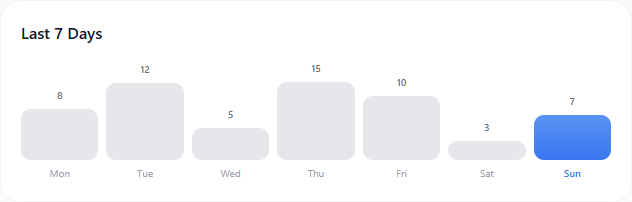
The weekly chart plots per-day credit usage (numbers above each bar). It is tuned for spotting spikes—double sessions, tournament weeks, or batch analysis days—without opening spreadsheets.
Your current day may be visually emphasized when the prototype highlights “today” versus earlier weekdays.
Activity log
The Activity block lists recent credit-consuming work in chronological order (newest typical at the top in the prototype).
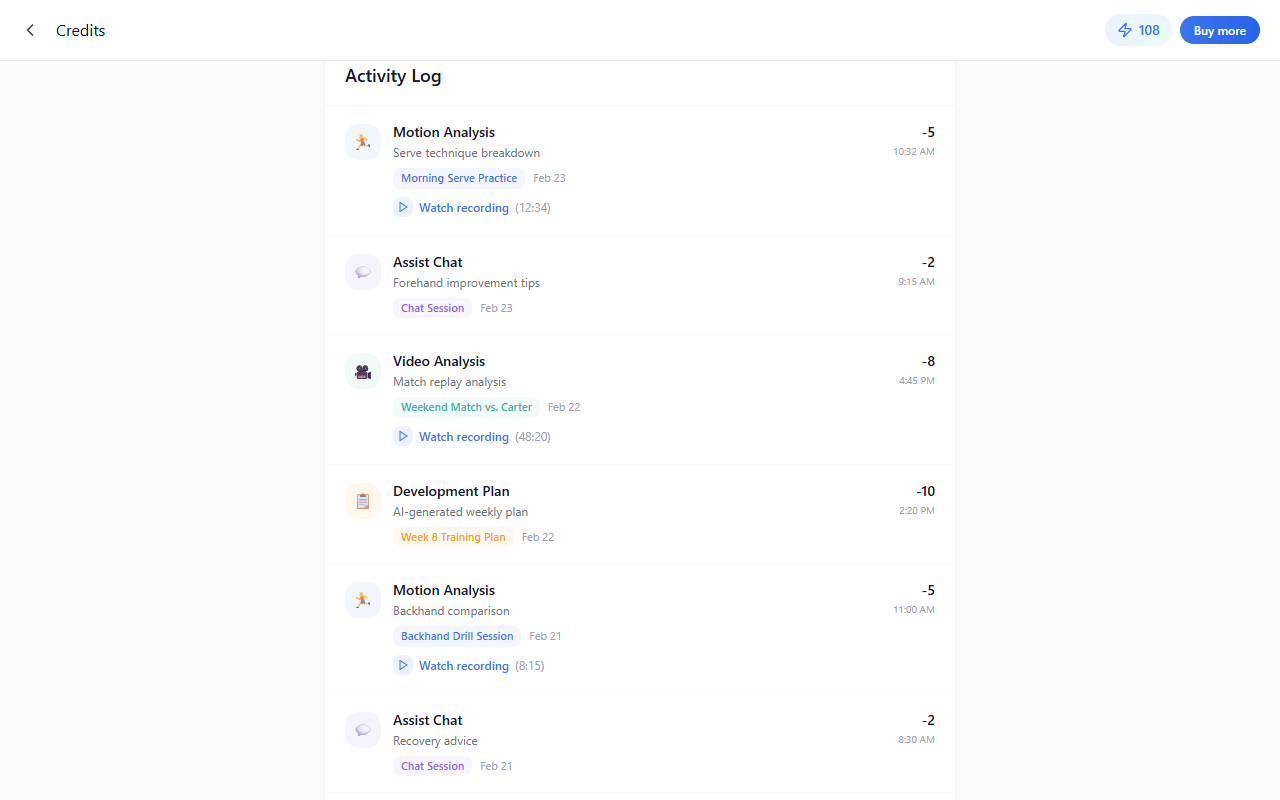
Each row is a consumption event tied to real coaching work. A typical entry includes:
- An activity type (for example Motion Analysis).
- A short description of what was analyzed (for example Serve technique breakdown).
- Session context such as practice title and date.
- Credits spent (shown as a negative delta).
- Timestamp.
- Optional Watch recording when the product links spend back to the clip you analyzed.
Use the log to audit which sessions drove cost and to reopen footage when you want to reconcile numbers with something you remember doing on court.
Buying more
Tap Buy more in the header on Credits. In the prototype this opens a Buy Credits screen with credit packages (one-time bundles), pricing, and often a subscription or upgrade path (for example CoachEye Pro).
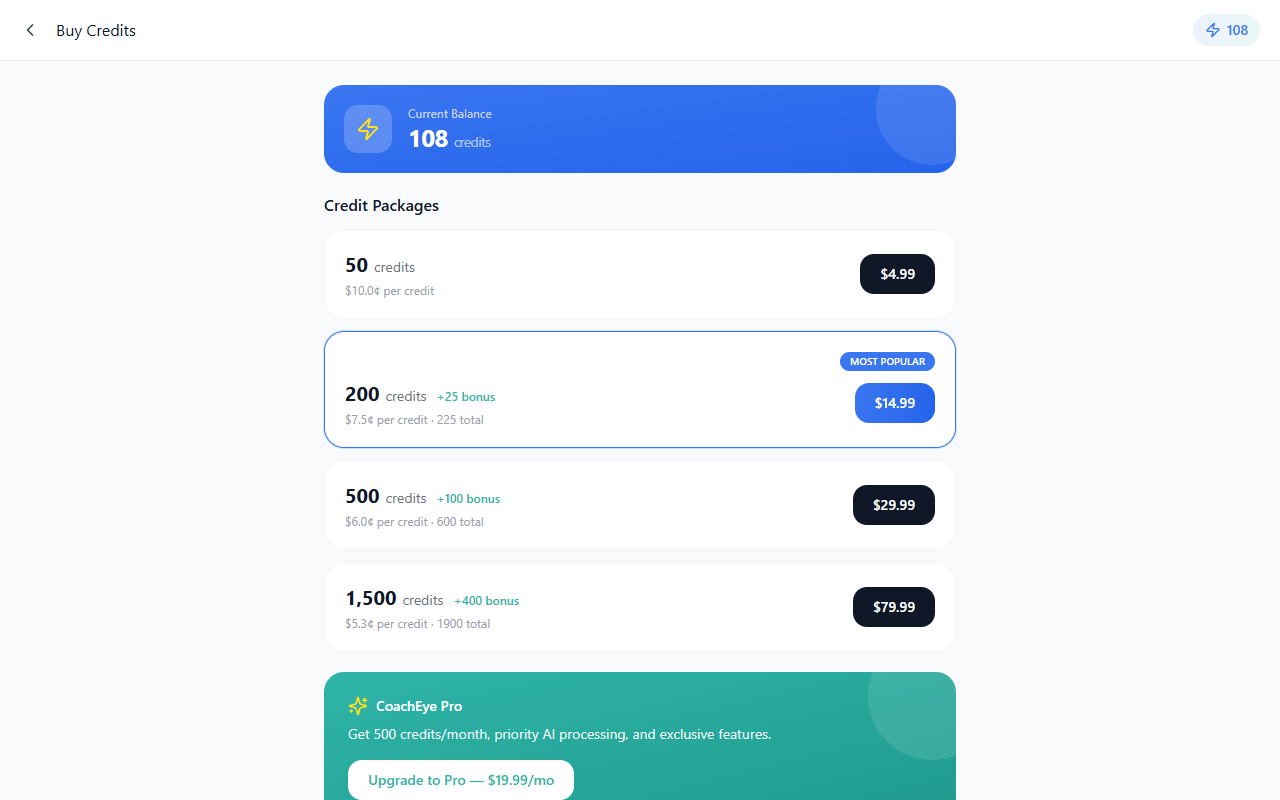
Use this flow when:
- monthly included credits will not cover upcoming analysis,
- storage approaches the included cap,
- or you want to add capacity before a camp or competition block.
Exact SKUs, regional pricing, payment methods, and subscription terms depend on your deployment—they may differ from the prototype.
How Credits connects to the rest of CoachEye
- Quick start — account model and moving between the four main areas; Credits sits under the personal account entry in the shell.
- Video Analysis — where AI features attach to your footage; consumption on Credits reflects work triggered from that area.
- Usage scenarios — end-to-end stories that combine capture, training, and review—helpful when tying log entries to credit lines.
Tips
- Check Credits before a multi-session filming day so storage and monthly allocation match your plan.
- If Avg. daily usage rises but training volume did not, look for batch analysis or re-runs in the Activity list.
- When Analysis storage grows faster than Videos, you may be keeping large structured outputs—confirm retention settings if your product exposes them.
Related guides
- Quick start — account, logbooks, navigation.
- Video Analysis — AI workspace tied to credits consumption.
- Today — daily surface where you manage training work that later feeds recordings and analysis.
Plan and billing details
Plan tiers, reset calendars, and purchase options can vary by account and product version. Check the billing information shown in your CoachEye account before planning a long recording or analysis block.