
Logbook
Overview
Logbook is where your training history comes together in one place. It helps you see what was planned, what was completed, and how training is developing over time. Open it from the bottom navigation (see Quick start for how the main areas fit together), then switch between Dashboard and Sessions at the top.
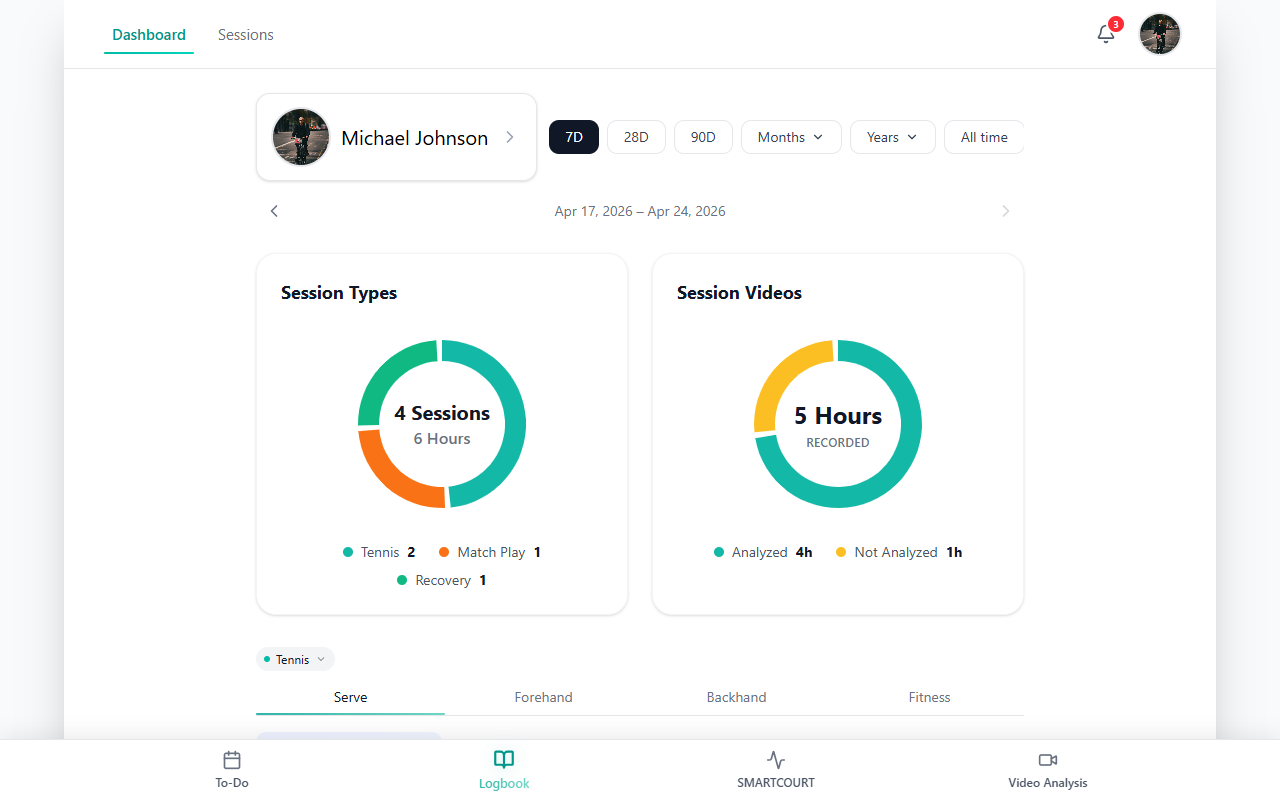
Use Logbook when you want to step back from the current day, review the bigger picture across weeks, find a specific past workout or match, or move from a session into video and deeper analytics (Video Analysis and Analytics & Progress when you need more depth).
For athletes, this makes progress easier to understand.
For coaches, it creates a practical view of how training is evolving across sessions, workloads, and skill areas.
Over time, Logbook helps connect daily work to longer-term development and makes it easier to adjust training with important dates, competition periods, and season goals in mind.
Why Logbook matters
Progress is easier to manage when it can be seen clearly.
Training does not improve performance through isolated sessions alone. What matters is how work adds up over time: how often the athlete trains, what kind of work is being done, how the load is changing, and what patterns appear across weeks or longer periods.
That is why Logbook matters. It helps users track the athlete’s development instead of relying only on memory or recent impressions.
For coaches, this makes it easier to:
- follow athlete progress over time,
- review workload and training focus,
- return to specific sessions and matches,
- and use that context to guide the next stage of work.
For athletes, it helps:
- understand how training is progressing,
- review what is working,
- identify where more attention is needed,
- and adjust preparation more intentionally over time.
This is especially useful across a season. By reviewing short-term feedback and longer-range patterns, users can better shape training toward important dates and competition periods instead of reacting only one session at a time.
What you can do here
In Logbook, you can:
- switch between Dashboard and Sessions
- review training history across short or long time ranges
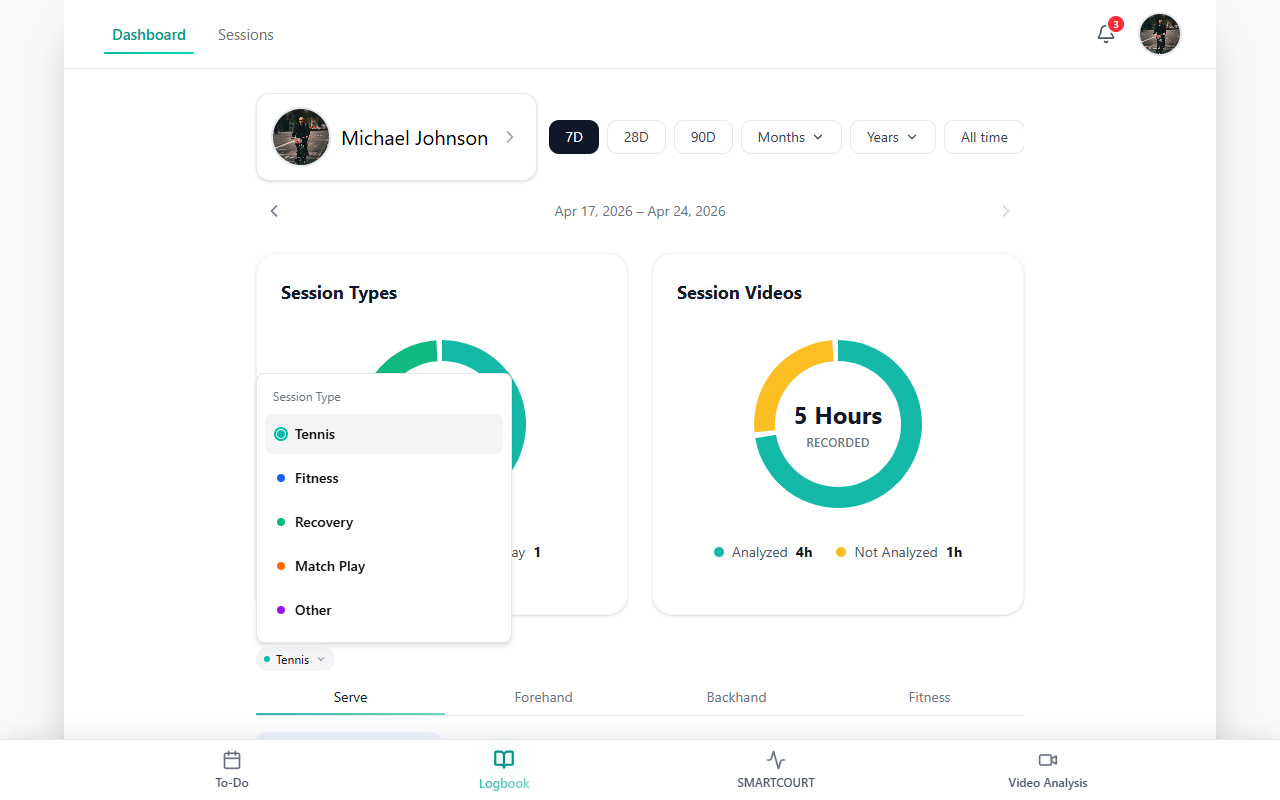
- filter by work type, such as court tennis, fitness, recovery, or match play
- move between focus areas like Serve, Forehand, Backhand, and Fitness
- open Show Analytics for charts based on the selected filters and focus
- search past sessions and matches
- open individual session records
- open attached video when available
- explore session analytics when offered
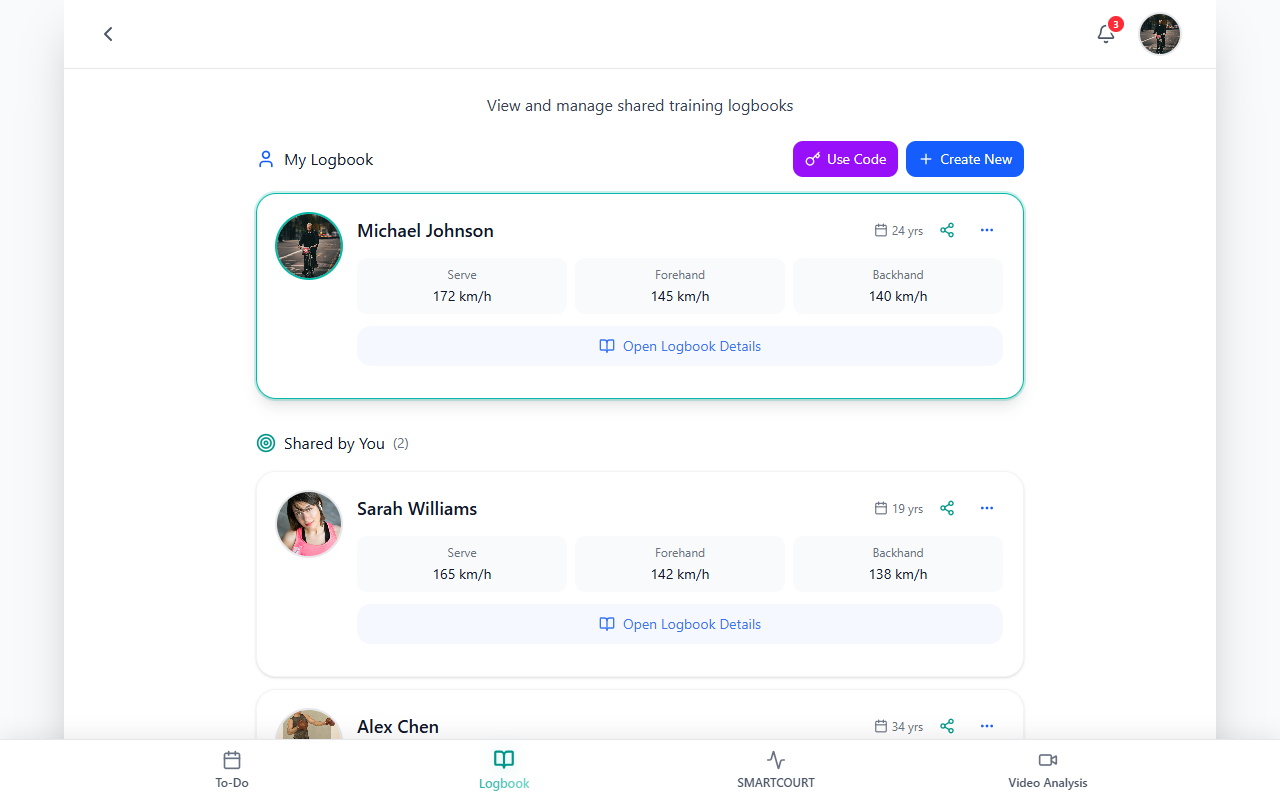
- switch journals if you use more than one training logbook — see View and manage shared training logbooks
This makes Logbook both a review tool and a decision-making tool.
Dashboard and Sessions
At the top of Logbook, you can switch between two working views:
- Dashboard — for trends, progress, workload, and focus-based review
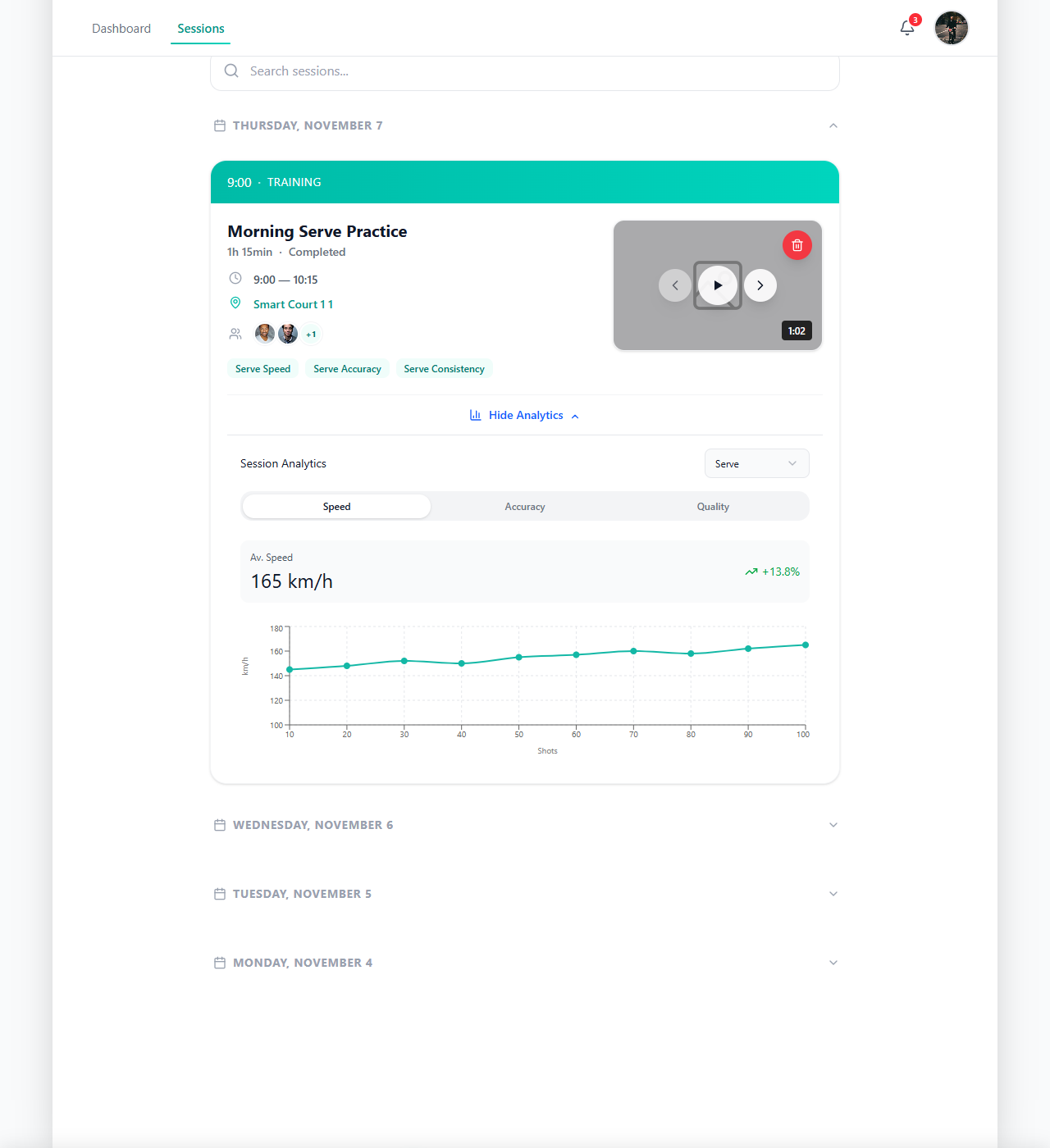
- Sessions — for session history, match history, search, video, and session-level analytics
This distinction is important.
Use Dashboard when you want to answer questions like:
- How is training moving over time?
- Is the athlete doing the right kind of work?
- Which skill area needs more attention?
- How is the balance between court work, fitness, recovery, and match play changing?
Use Sessions when you want to:
- find a specific training session,
- reopen a past match,
- review attached video,
- or look at analytics tied to an individual session
The header shows Dashboard and Sessions tabs so you can move between trends at a glance and detailed history when you need it.
Use Dashboard to track progress over time
Dashboard is the best place to review how the athlete’s training is developing over time.
Dashboard: trends and skill focus
Use Dashboard when the question is “how is training moving over time—and which skill or workload should we look at?”
Start with time range: short stretches for immediate feedback, longer ranges for season-level patterns.
Then choose the type of work you want front and center (for example court tennis vs fitness vs recovery vs match play). That keeps the charts aligned with how the athlete is actually training.
Next, move between focus areas—Serve, Forehand, Backhand, Fitness—depending on what you are reviewing.
When you want charts for that combination of filters and focus, tap Show Analytics. The dashboards help you look back and decide where attention should go next.
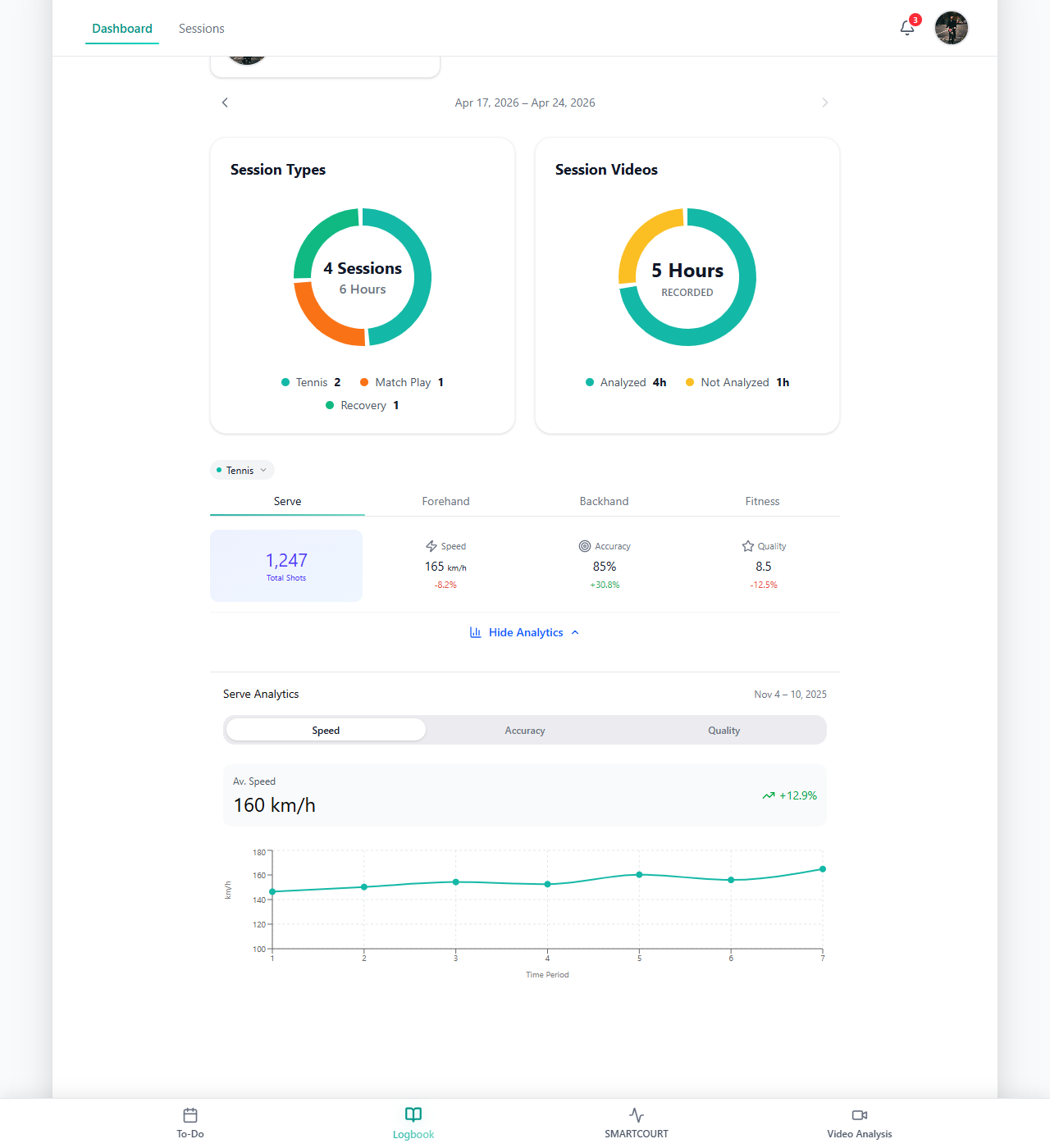
This is where Logbook becomes especially useful for progress tracking. It helps users move from “what happened recently” to “how training is actually trending” — and that makes it easier to decide where attention should go next.
For coaches, this supports better workload management and clearer athlete oversight.
For athletes, it helps turn training history into something actionable instead of something passive.
Use Sessions to review workouts and matches
Open Sessions when you want to work with individual training records more directly.
Here, you can:
- search past sessions,
- open individual records,
- revisit specific practice blocks,
- and return to past matches when they matter to your review
This is especially useful when you already know what you want to inspect — for example:
- a recent match day,
- a fitness session,
- or a technical session you want to compare against newer work
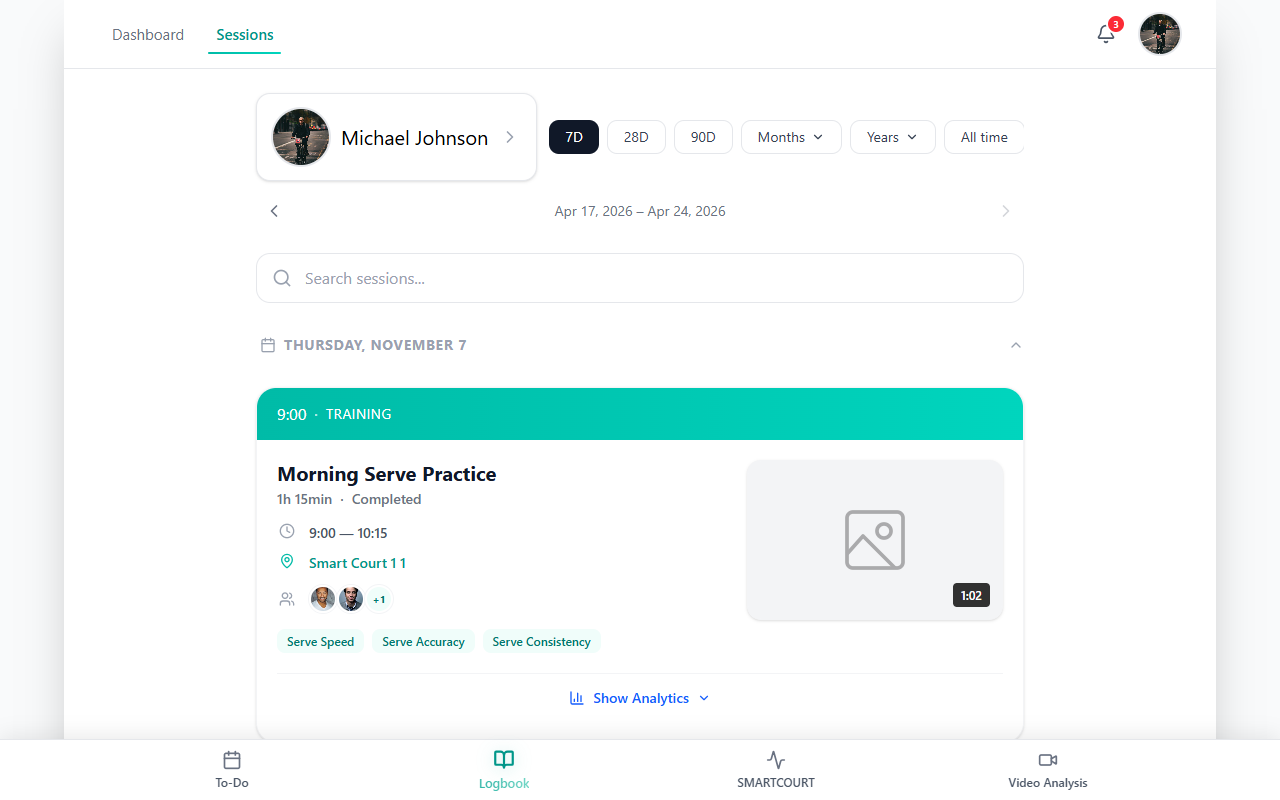
The Sessions tab is important because it gives you the full record of what has been done, not just the trend line. It is where the detailed session-by-session and match-by-match history becomes visible.
Open video and session analytics
When a session includes video, you can open it directly from the record.
If analytics are available for that session, you can also explore session analytics and move into a deeper technical review (Video Analysis). This helps users look beyond the fact that a session happened and understand how the athlete actually performed.
This is especially valuable for:
- reviewing match footage,
- revisiting technical sessions,
- and connecting training history with visible performance outcomes.
The combination of Sessions, video, and session analytics makes Logbook especially powerful for coaches who want a clearer view of athlete development and for athletes who want to understand how their game is changing over time.
Switch journals when needed
If you use more than one training logbook, you can switch journals from Logbook (View and manage shared training logbooks).
This is useful when:
- a coach works with more than one athlete,
- a parent follows more than one child,
- or one account manages multiple journals.
Before comparing numbers, trends, or blocks of work, make sure you are in the correct logbook.
How to use Logbook
- Open Logbook — Tap Logbook in the bottom navigation (Quick start).
- Choose the right view — At the top, switch between Dashboard for trends and progress and Sessions for detailed training and match history.
- Set the review period — In Dashboard, choose the time range that fits your question: recent feedback, medium-term block review, or longer seasonal patterns.
- Filter the training context — Choose the work type and then the focus area so the dashboard answers a real training question.
- Open analytics when needed — Tap Show Analytics to view charts for the selected combination.
- Search sessions and matches — In Sessions, search for the specific record you want to reopen.
- Open video or session analytics — If the session includes them, use video and analytics for deeper review (Video Analysis).
- Switch logbooks if needed — Make sure you are reviewing the correct athlete record before drawing conclusions (shared training logbooks).
What happens next
The value of Logbook is not just in looking back. It also helps shape what happens next.
Once you understand how training is trending, which sessions were most useful, and where the athlete’s attention should go, you can use that insight to adjust upcoming work more intelligently.
That is why Logbook matters across the full CoachEye workflow:
- Development Plans helps organize the week,
- Today helps execute the current day,
- Logbook helps review progress and guide the next decisions.
Over time, this makes it easier to train with purpose, manage workload more intelligently, and prepare for key parts of the season with a clearer picture of how development is unfolding.
Tips
- Use Dashboard when your question is about progress, trends, or training direction.
- Use Sessions when you need a specific workout, match, or record.
- Start with the right time range before reviewing charts so the view matches your real question.
- Pair work type and skill focus so the dashboard answers something specific and useful.
- When video is available, use it together with analytics to move from “what happened” to “how it looked technically”.
- Before comparing numbers across athletes or training blocks, confirm you are in the correct logbook (shared training logbooks).
Related guides
- Today — stay aligned with what is planned for the current day.
- Development Plans — shape the week before it lands on the calendar.
- Training Hub — drills, routines, and reusable training content.
- Analytics & Progress — connect dashboards, video, and long-term trends when you need more depth.