
Development Plans — User Guide
Development Plans opens the full-screen Weekly Schedule: one place to shape your training week—activity types, venues, and start times on a Mon–Sun timeline—so what you see on Today matches the plan. Enter from the Development Plans card on Today while the To-Do footer tab is active.
Athletes and coaches use this when they need the whole week visible at once, not only a single day. Core concepts explains logbooks, events, and training plans; Training Hub is where drill catalog and planning ideas live in depth.
Why this matters
Balancing the week—sessions, venues, and recovery—reduces surprises and keeps training, coaching, and home on the same page. Today is for executing today; Weekly Schedule is where you set up or adjust the week so daily work stays aligned.
What you can do here
- Open Weekly Schedule from the Today card and return with Back.
- Choose the month and week you are editing.
- Apply a Week Template (category, template, recurrence) when available.
- Pick an activity type (Tennis, Fitness, Recovery, Match Play, Rest Day, Other) so Locations and new blocks match that kind of session.
- Drag a location onto a day row, or tap a location then tap a row (place mode).
- Drag session blocks along the timeline to change start time (snapped to the grid).
- Tap a block to expand details; open Details for the full session sheet; Delete a row when shown.
- Tap Modify to open Manage Weekly Schedule for form-style edits (time, duration, type, location, participants) and Save Changes.
Open Weekly Schedule
- On Today, tap To-Do in the footer.
- Scroll to the Development Plans card and open it.
- Confirm you see the title Weekly Schedule and Modify in the header.
The screen at a glance
Top: Back, centered title Weekly Schedule, Modify on the right.
Below: Month navigation, a Week strip, Week Template, the current template name if any, activity type chips, a Locations row, then seven timeline rows (Mon–Sun) with time tracks.
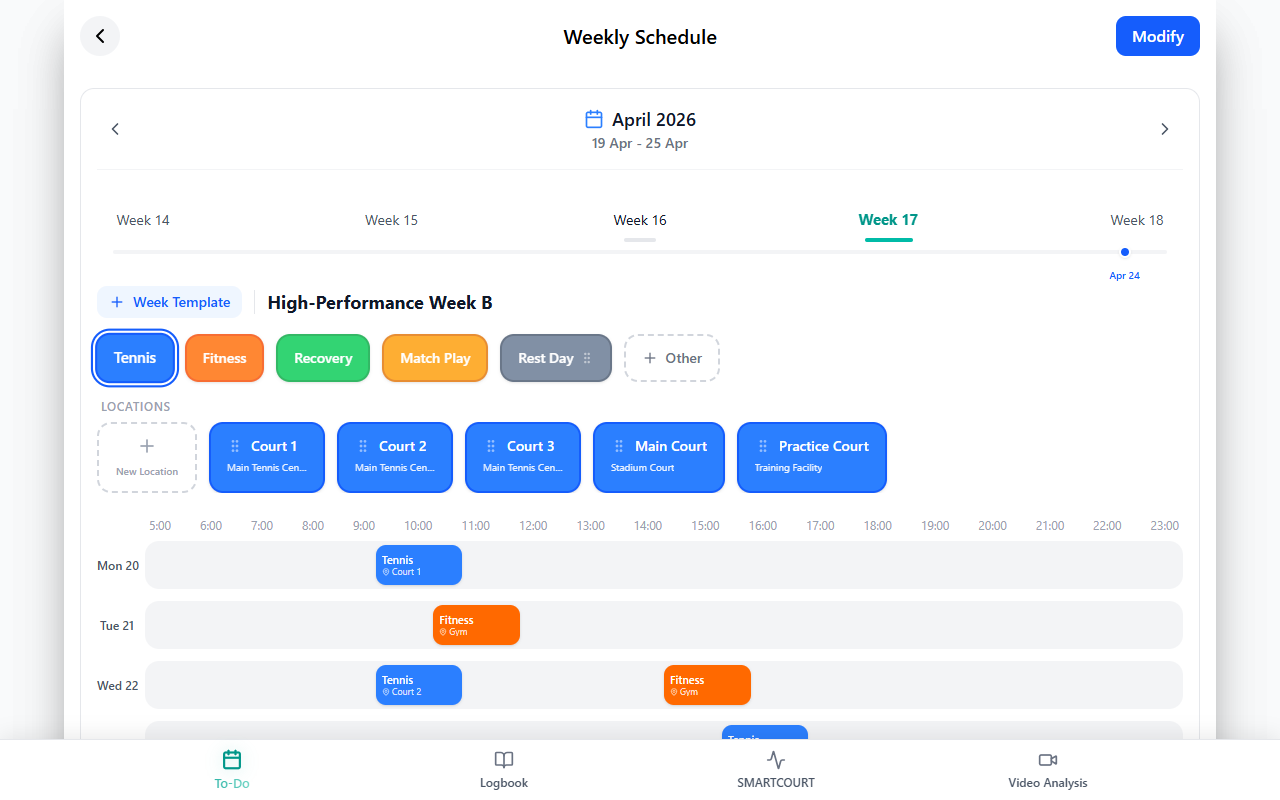
Figure: Header, Modify, and week selection.
Modify (Manage Weekly Schedule)
Use Modify when pickers are easier than dragging—small screens, precise times, or editing several fields at once.
- Tap Modify on Weekly Schedule.
- Edit rows by day; tap Save Changes to apply. Use Back in the manage header to leave; your app may ask to confirm if you discard edits.
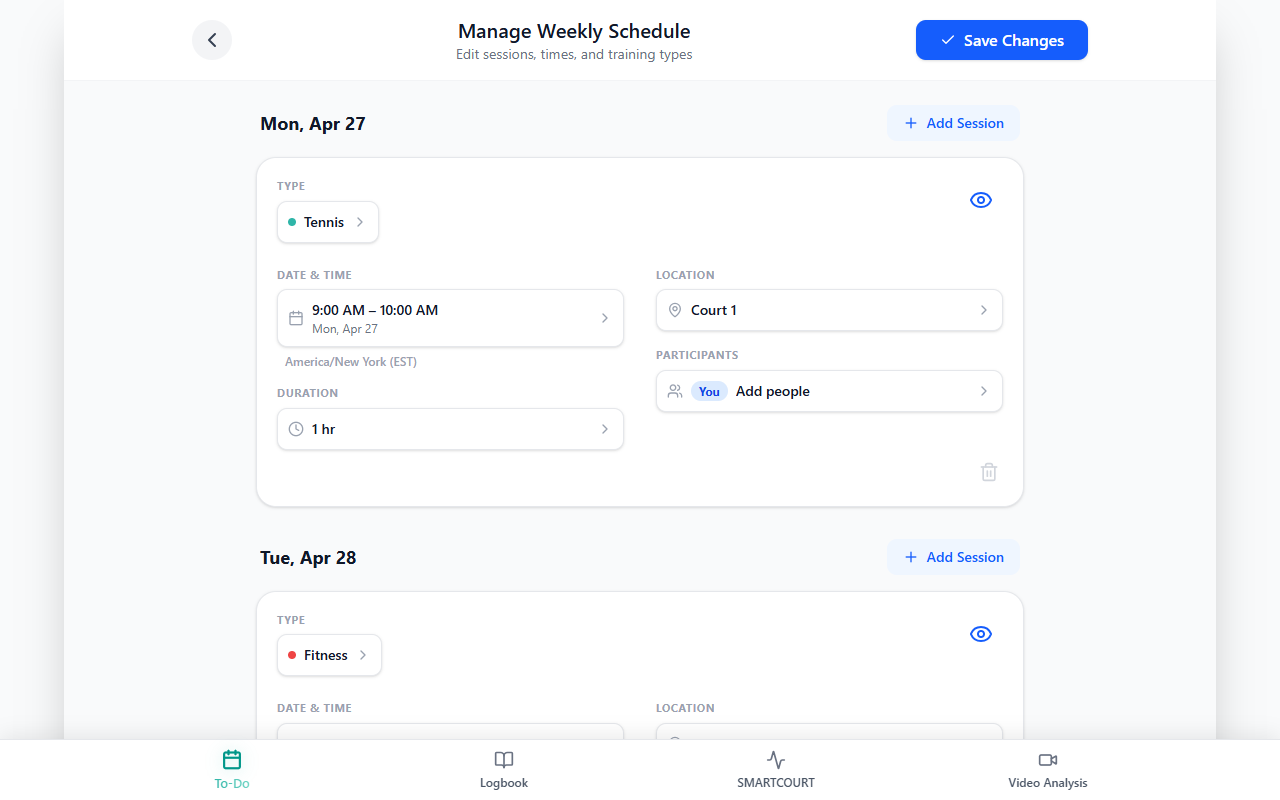
Figure: Manage Weekly Schedule after Modify.
Week templates
Templates help you drop a full week pattern instead of placing every block by hand.
- Tap + Week Template or Week Template in the week header area.
- Choose a category and template, set how many weeks it applies to, then confirm (e.g. Apply).
- If the week already has sessions, the app may ask whether to replace them or keep them—wording varies by version.
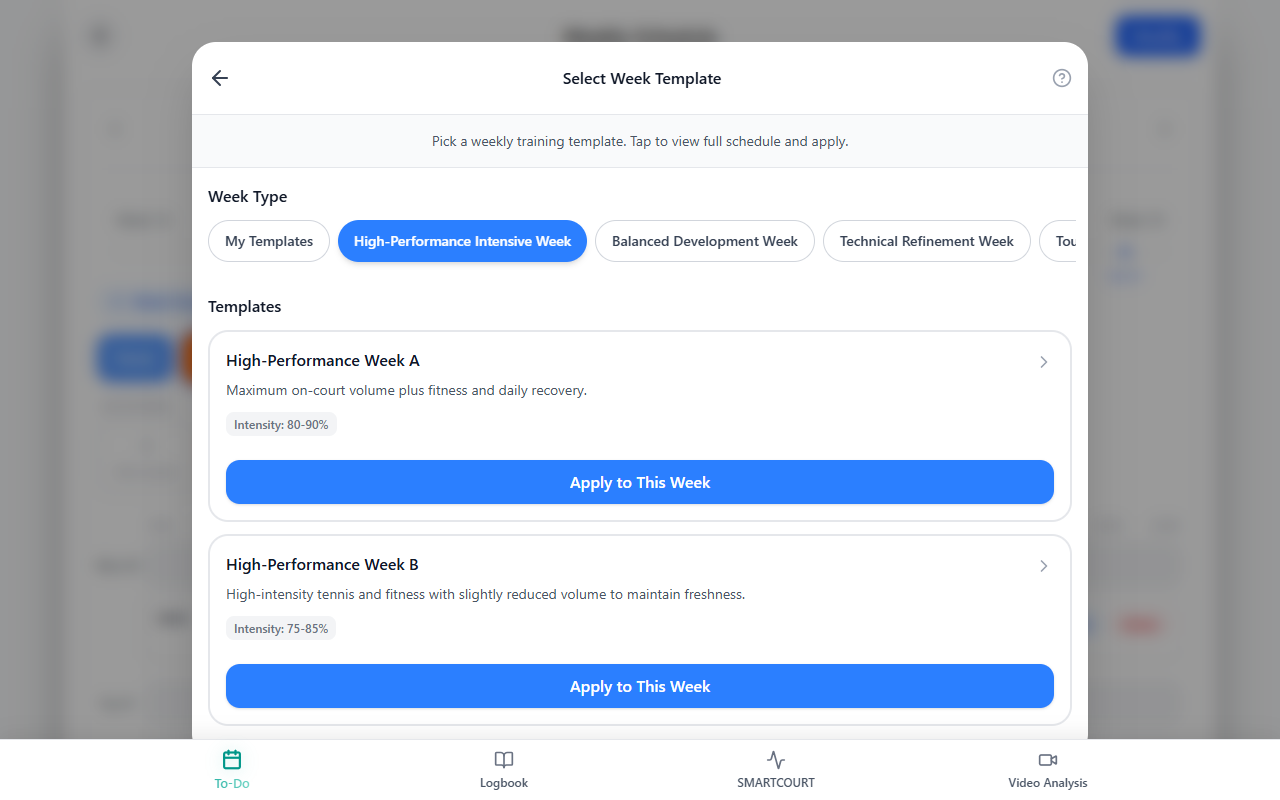
Figure: Choosing a template and recurrence.
Work with the week
Select the week
Use ← / → on the month if needed, then tap Week *N* in the strip. The selected week is highlighted. Each row shows Mon … Sun with dates so you edit the intended calendar week.
Activity types and locations
The Tennis, Fitness, Recovery, Match Play, Rest Day, and Other chips set the active session type for Locations and for new blocks. Match Play uses tennis venues; Rest Day can be dragged onto a day to mark it rest—if that day already has sessions, confirm only if you mean to replace them. Tap Other to add a custom type when your app supports it.
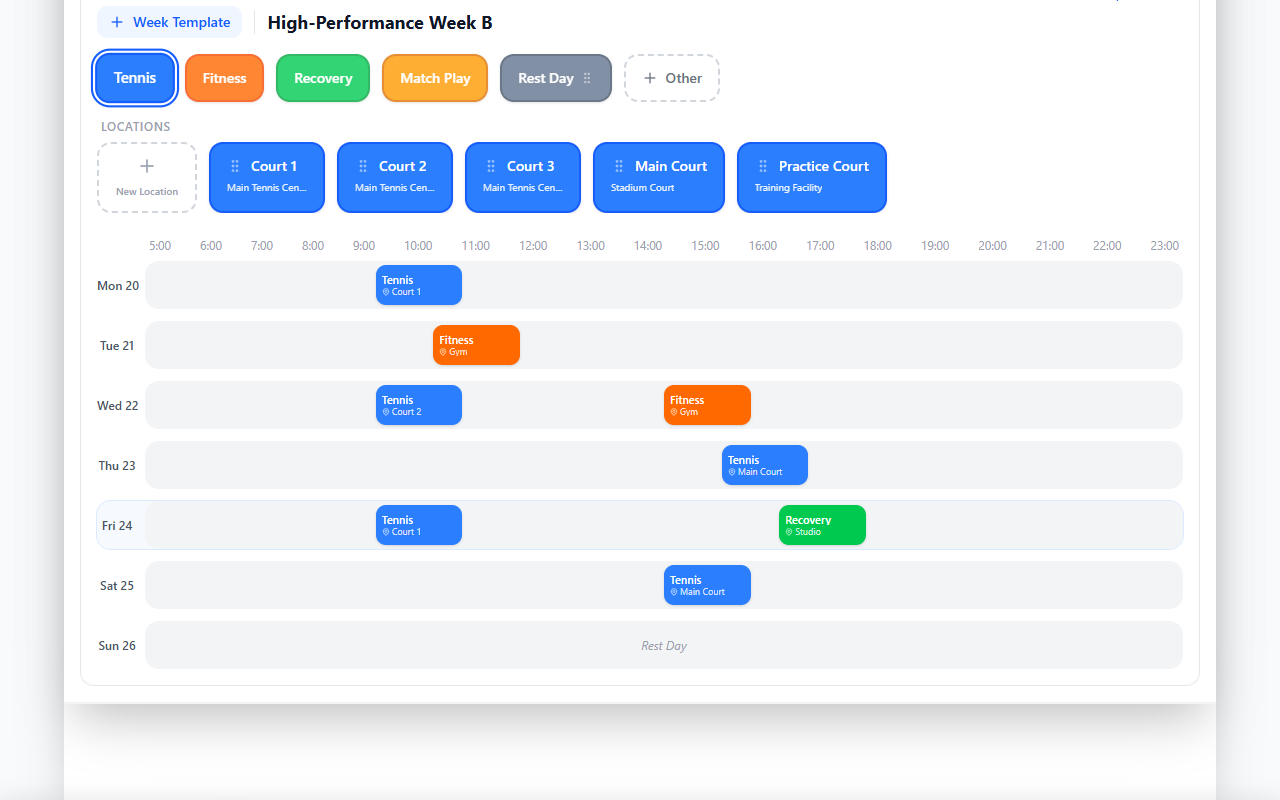
Figure: Week Template shortcut, activity types, and Locations (Tennis).
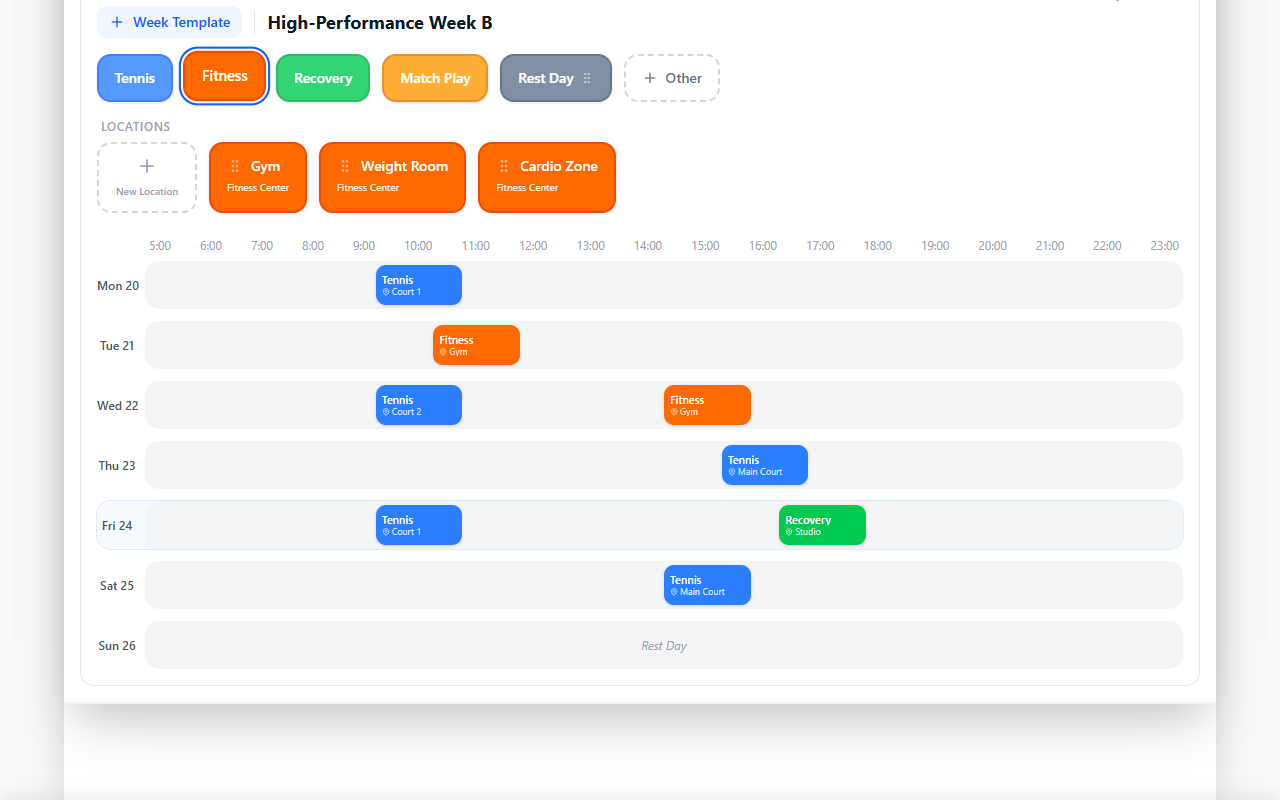
Figure: With Fitness selected, Locations shows fitness venues.
Place sessions
- Select the activity type first.
- Drag a location chip onto the timeline row for that day; horizontal position sets start time (snapped).
- Or tap a chip to enter place mode, then tap the day row (a hint may show until you place or cancel).
Move a session in time
Drag a session block horizontally on its day’s track and release when the time matches what you want.
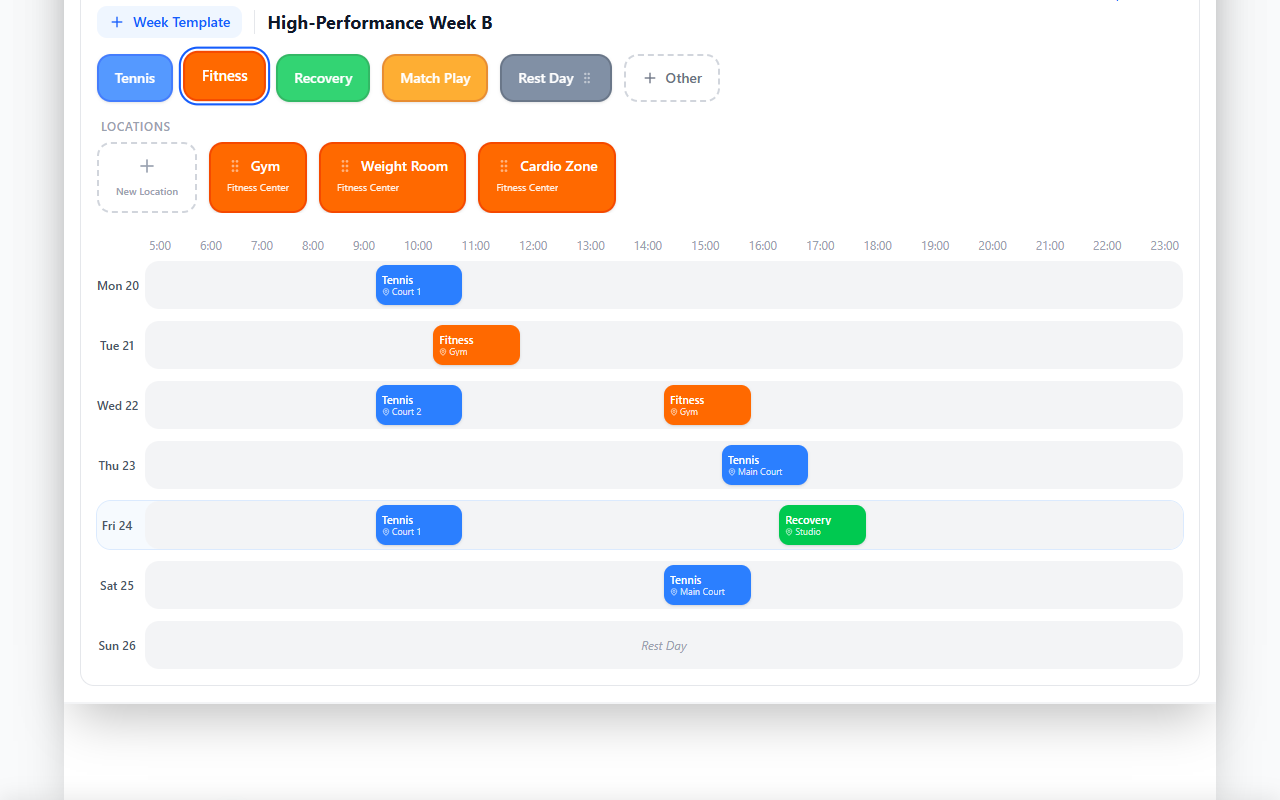
Figure: Drag blocks along the track to shift start time.
Session details and changing type
Tap a block once to expand cards under the track. Details opens the session sheet; use Back on the sheet to return to Weekly Schedule. Delete removes that row when available.
To change type after placement: switch the palette, remove the block, and place again—or use Modify and change sport/type in Manage Weekly Schedule.
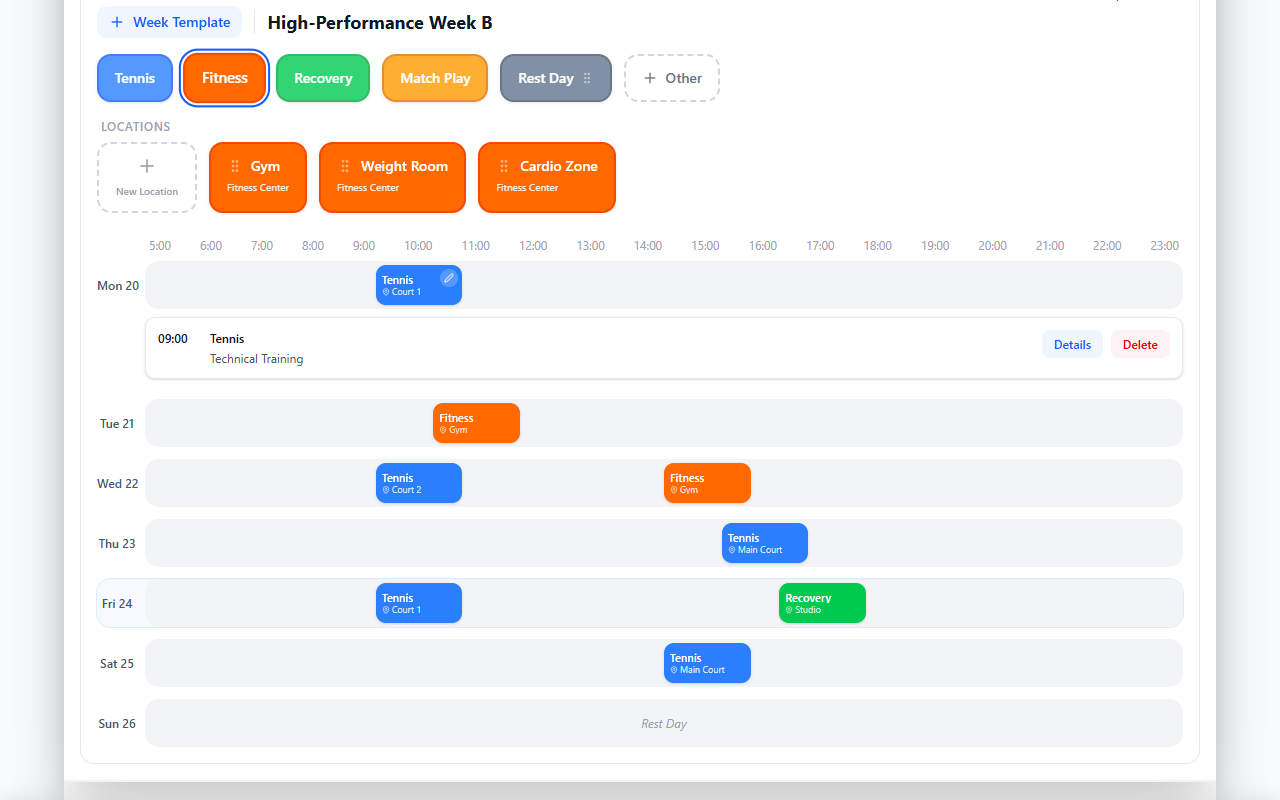
Figure: Expanded row—Details and Delete.
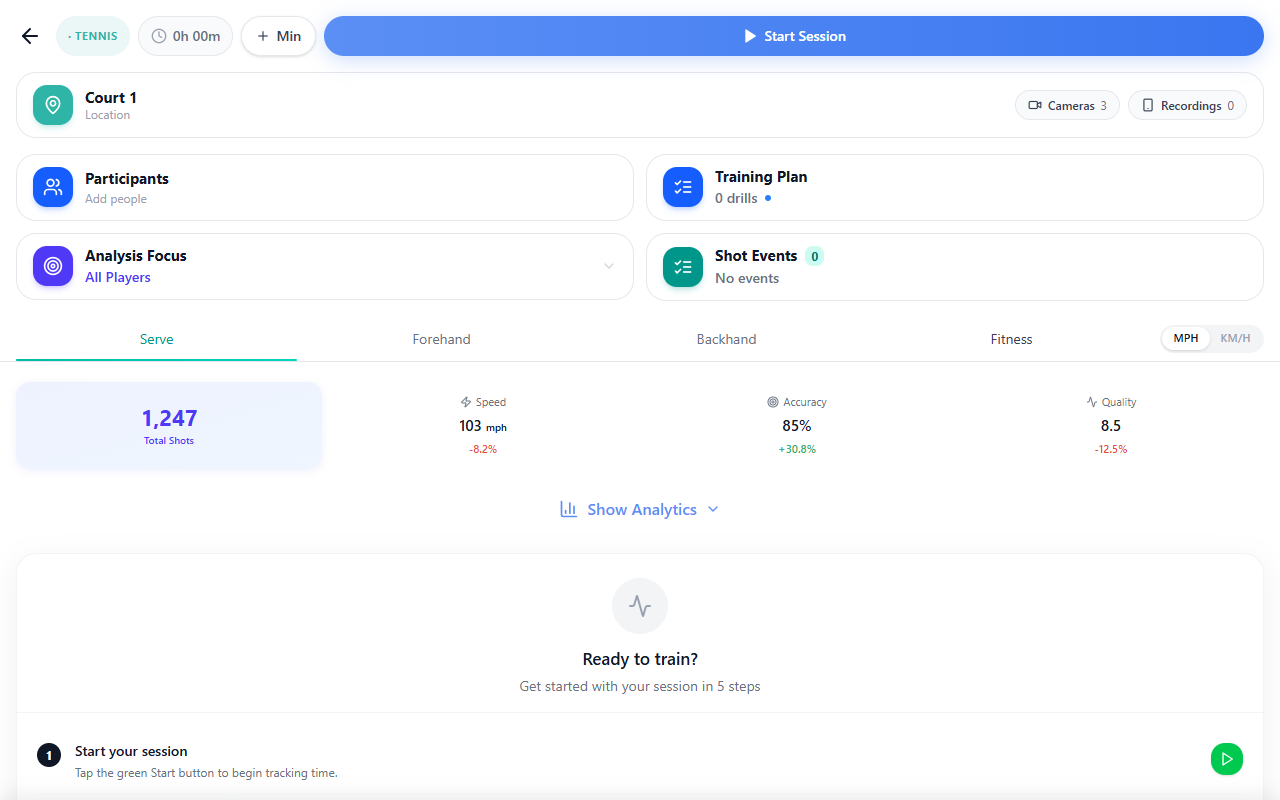
Figure: Session sheet from Details (screens may differ slightly on your device).
What happens next
Plan the week here, then carry out and tweak today on Today. History, shared views, and deeper analytics sit under Logbook and related guides when you need them.
Related guides
- Today — daily surface and the Development Plans card
- Add a session from Today — quick single-session entry
- Core concepts — logbook, events, plans
- Training Hub — drills and plan composition
- Core concepts — Development Plans and other terms
- Interface overview — overall navigation
Tips
I do not see the week strip or full timeline. Some editions show the full editor only when a training plan is active. If you see a simpler or empty screen, finish onboarding or create a plan first. If it still looks wrong, see edition and feature differences.
A sheet stayed open. Use the Back control in the sheet header.
Rest Day replaced sessions on a day. The app should warn you when the day already has work scheduled—confirm only if you intend to clear it.