
Add a session from Today
Use this flow when you are on Today (the To Do area) and want to add a structured session to the day: court practice, fitness, recovery, a match, a saved routine from Training Hub, or a custom label. It keeps your plan clear for you, your coach, and anyone supporting your training.
Why it helps
A week of training is easier to follow when different kinds of work show up as distinct blocks—court time separate from gym work, recovery next to hard days, and matches separate from practice. That helps you balance load, prepare for competition, and review the week without guessing what each row meant.
Choosing the right session type also sets up the next step that makes sense: most types move you toward where you train, while Routine opens Training Hub to pick drills and bundles. The same structure later makes Logbook and Analytics easier to read, because similar sessions stay grouped.
At a glance
- Open New Session from the Add new session row on Today.
- Pick a session type that matches what you are logging.
- Use Routine for structured content from Training Hub (for example General, Pre-Match, Post-Match groups).
- Use Other when you need a custom name the presets do not cover.
- For most types, continue to location, then save so the session appears on your Today timeline.
Walkthrough
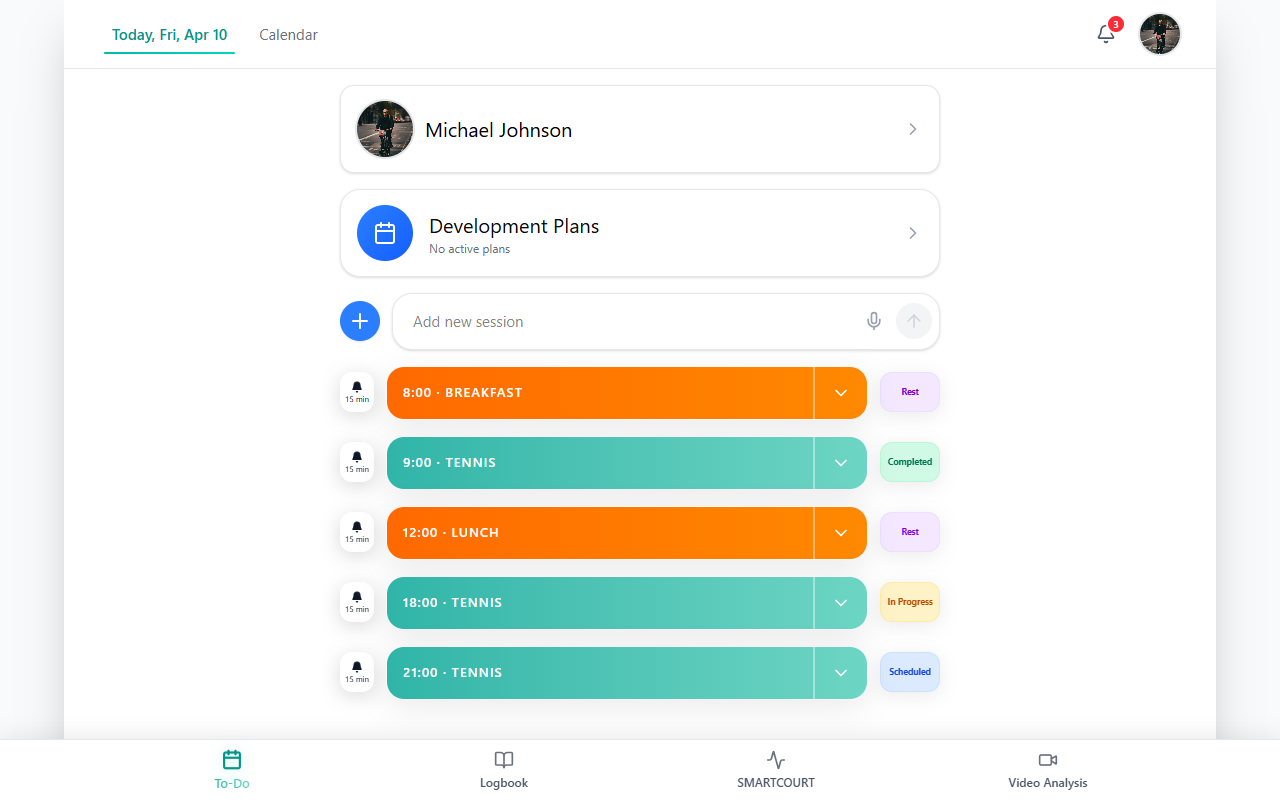
1. Open the flow
- Tap To Do in the footer.
- Select the Today tab at the top (you should see today’s date).
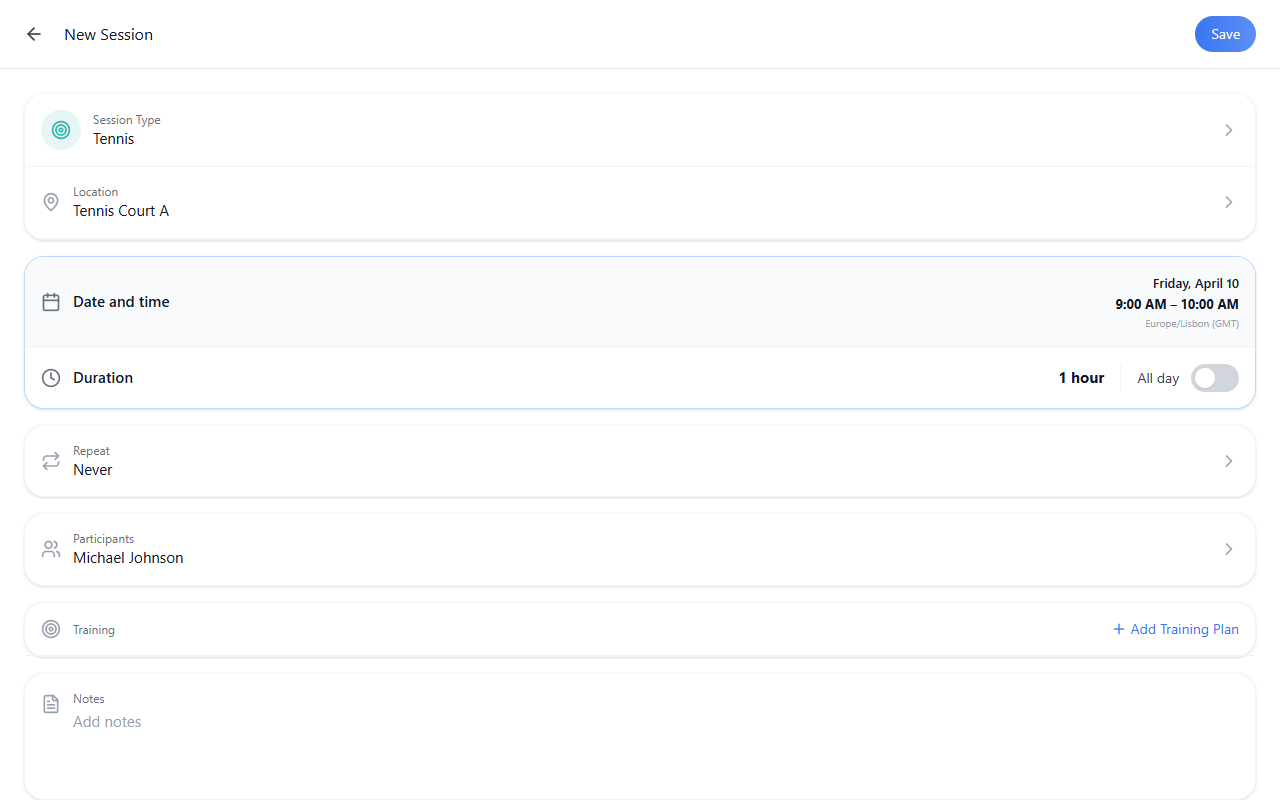
- On the Add new session row, tap + to open New Session.
If the row looks like a chat input, tap + to open New Session and follow the structured session flow.
2. Choose a session type
In the New Session panel, tap Session Type, then pick the option that fits. There are six types—each shapes what you do next and how the block reads on your timeline.
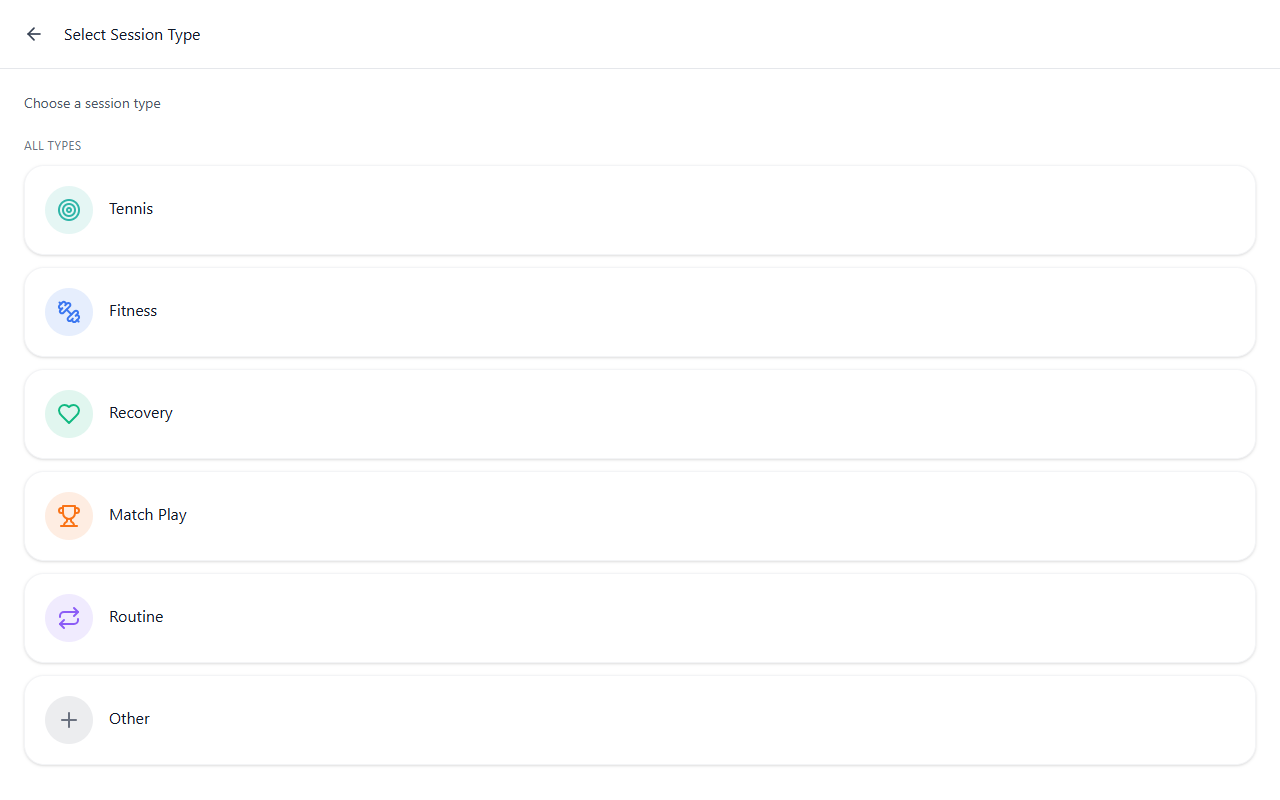
| Type | Use it for |
|---|---|
| Tennis | On-court or tennis-specific practice—your main court block for the day. |
| Fitness | Strength, conditioning, or gym-style work off the court. |
| Recovery | Mobility, cooldown, or therapy-style recovery so easy days stay visible next to hard sessions. |
| Match Play | Competitive or match-oriented play, separate from generic practice. |
| Routine | Repeatable bundles from Training Hub—link daily planning to saved drills and categories. |
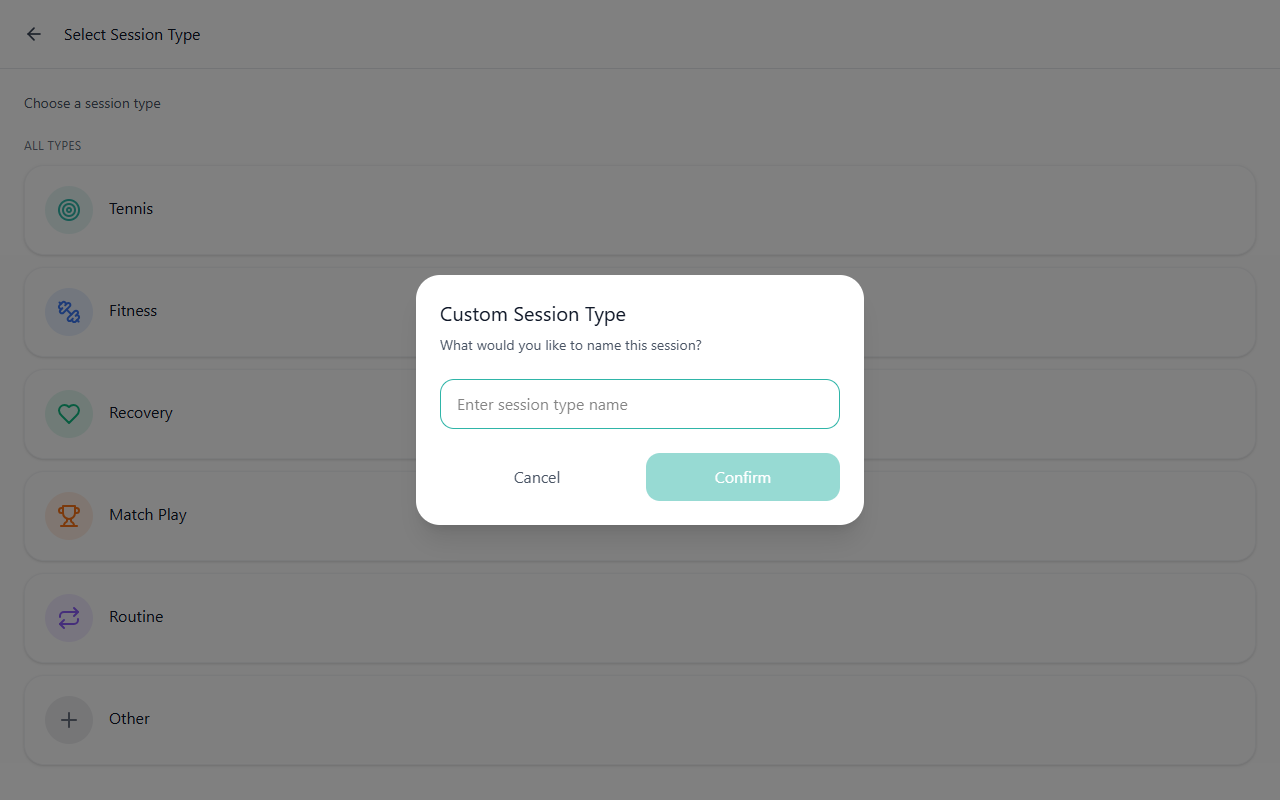
| Other | A custom name when the five presets are not enough. |
3. Follow the path for your type
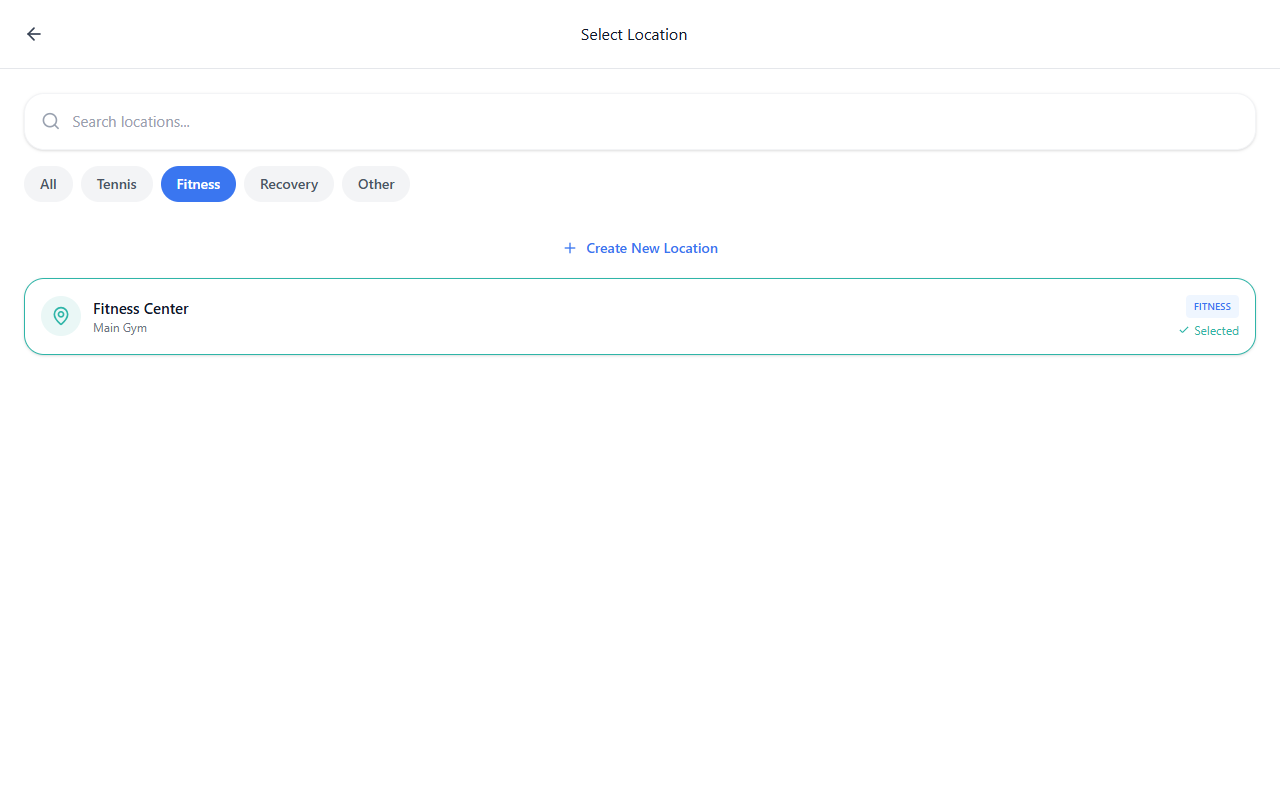
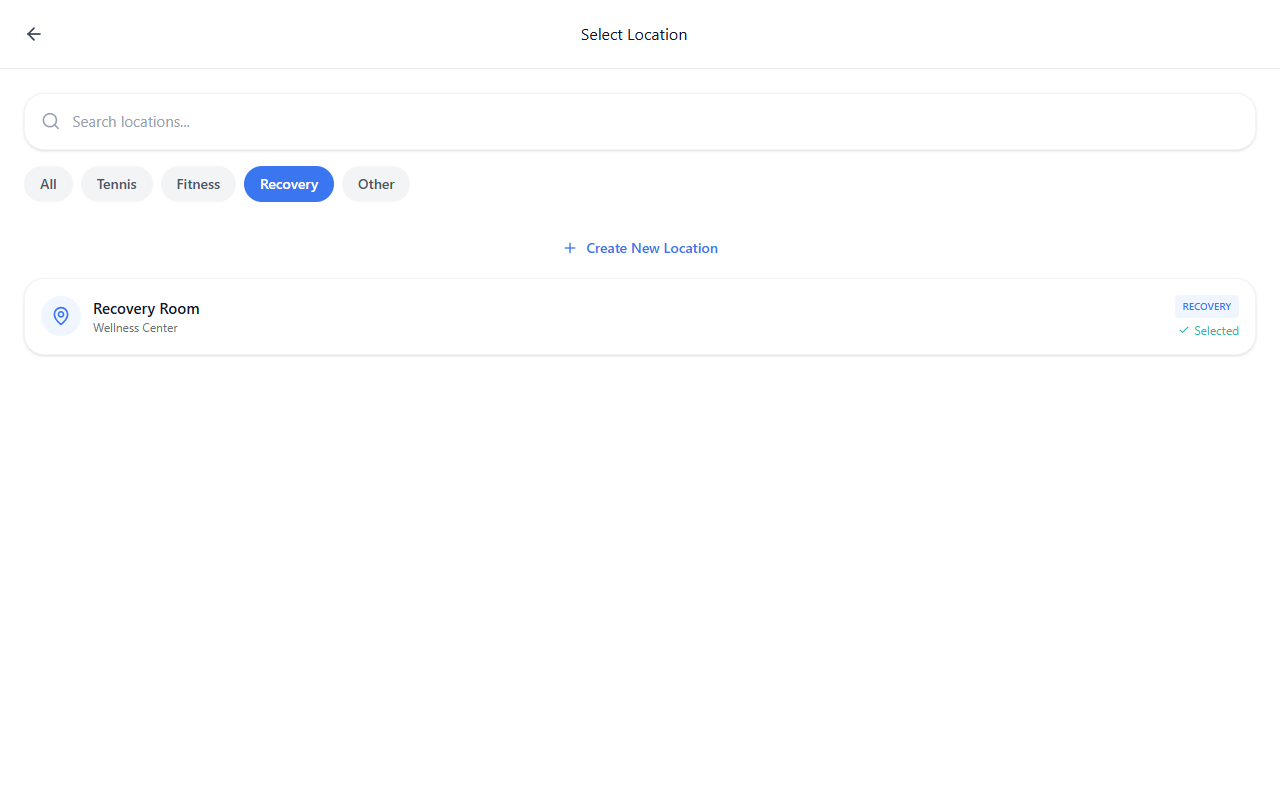
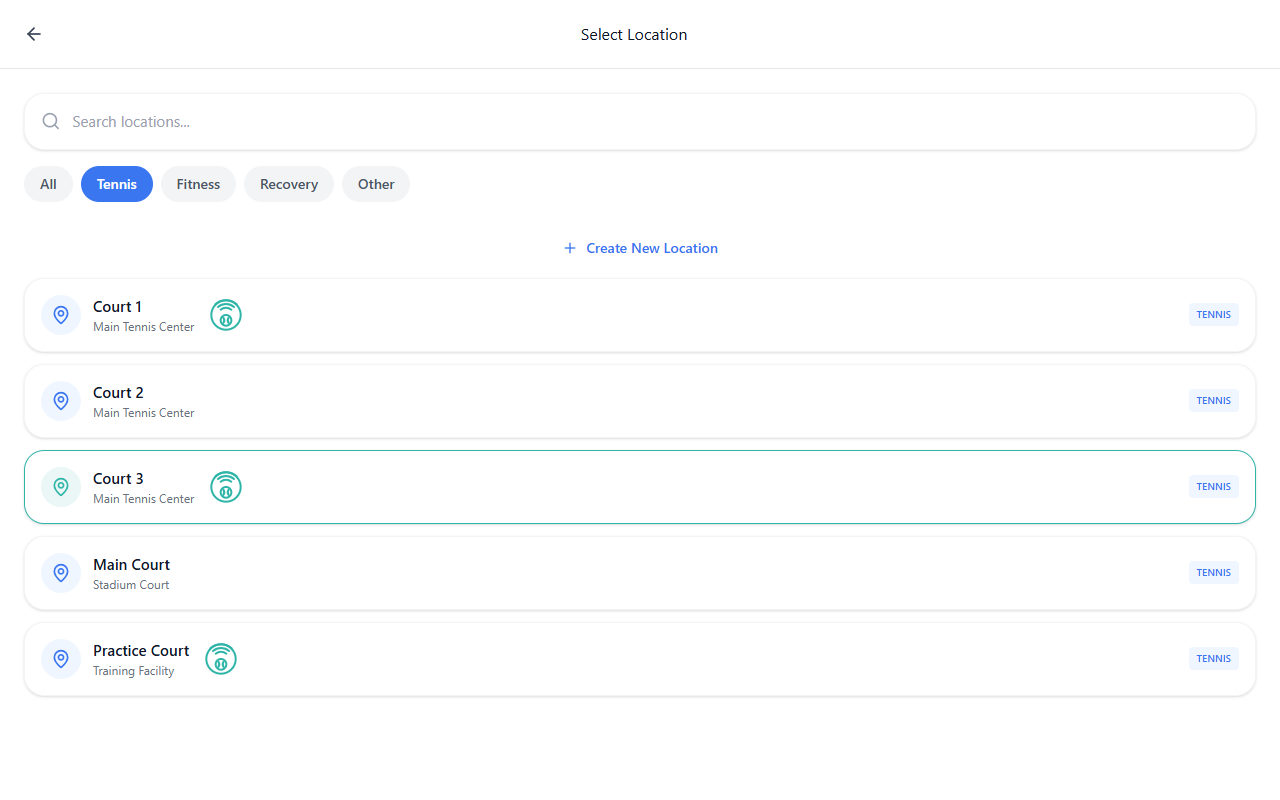
Tennis, Fitness, Recovery, Match Play — Tap the type, then continue with location (or the next screen you see).
Routine — Opens Training Hub so you choose content (routine groups such as General, Pre-Match, Post-Match), then place and time as the app guides you. Expand the sections you need and pick items from the catalog.
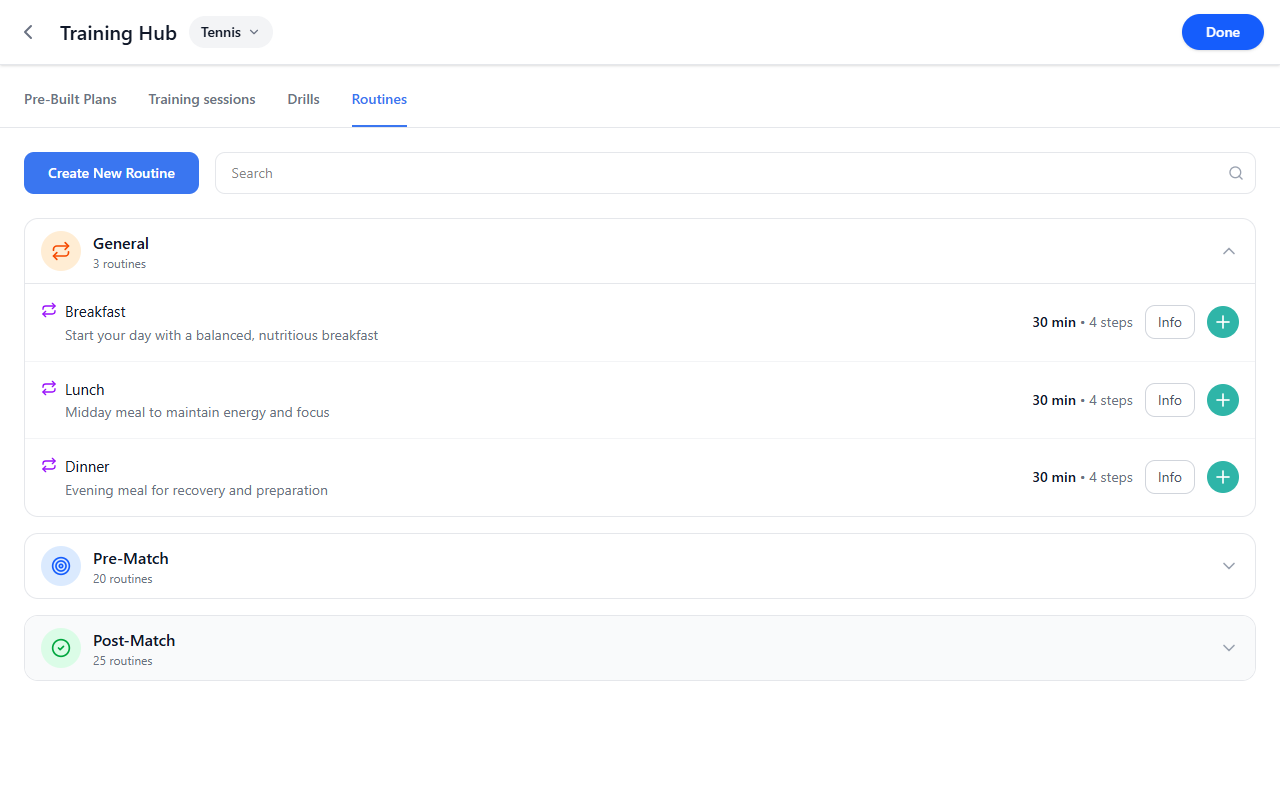
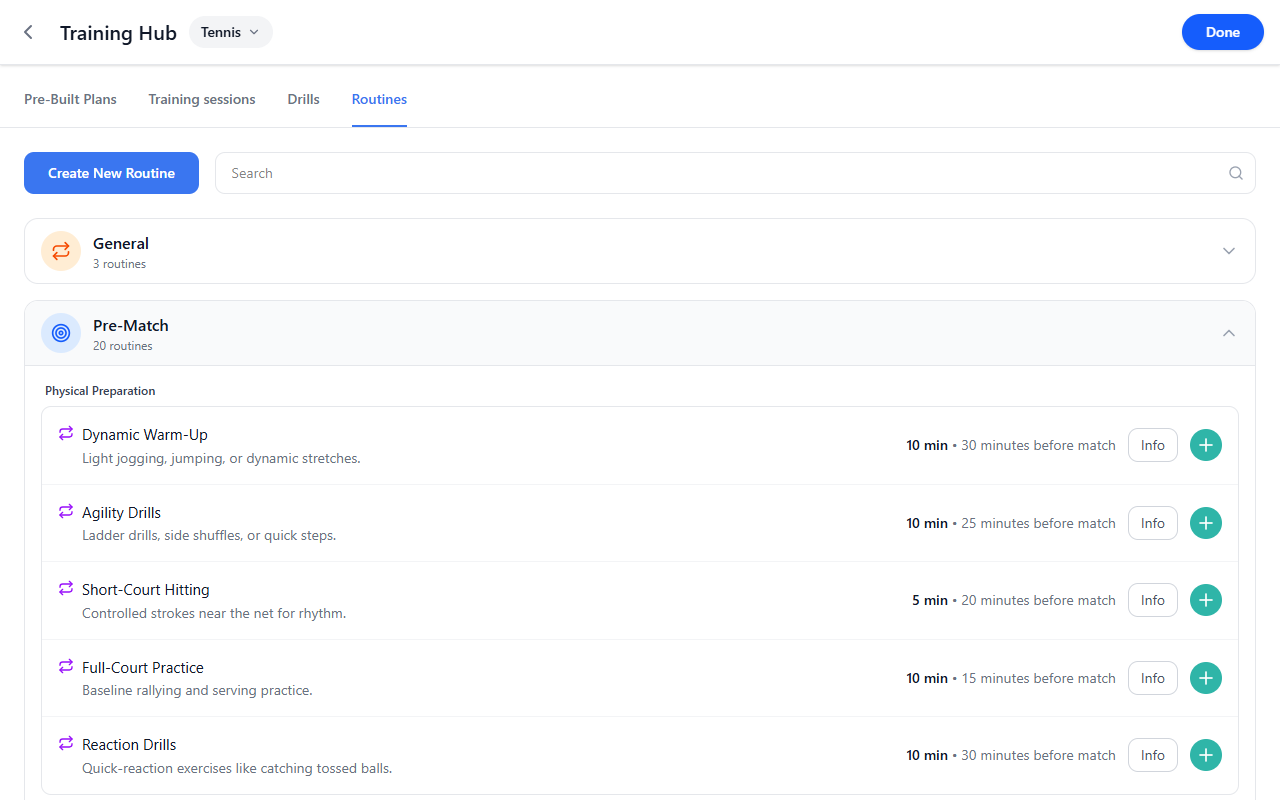
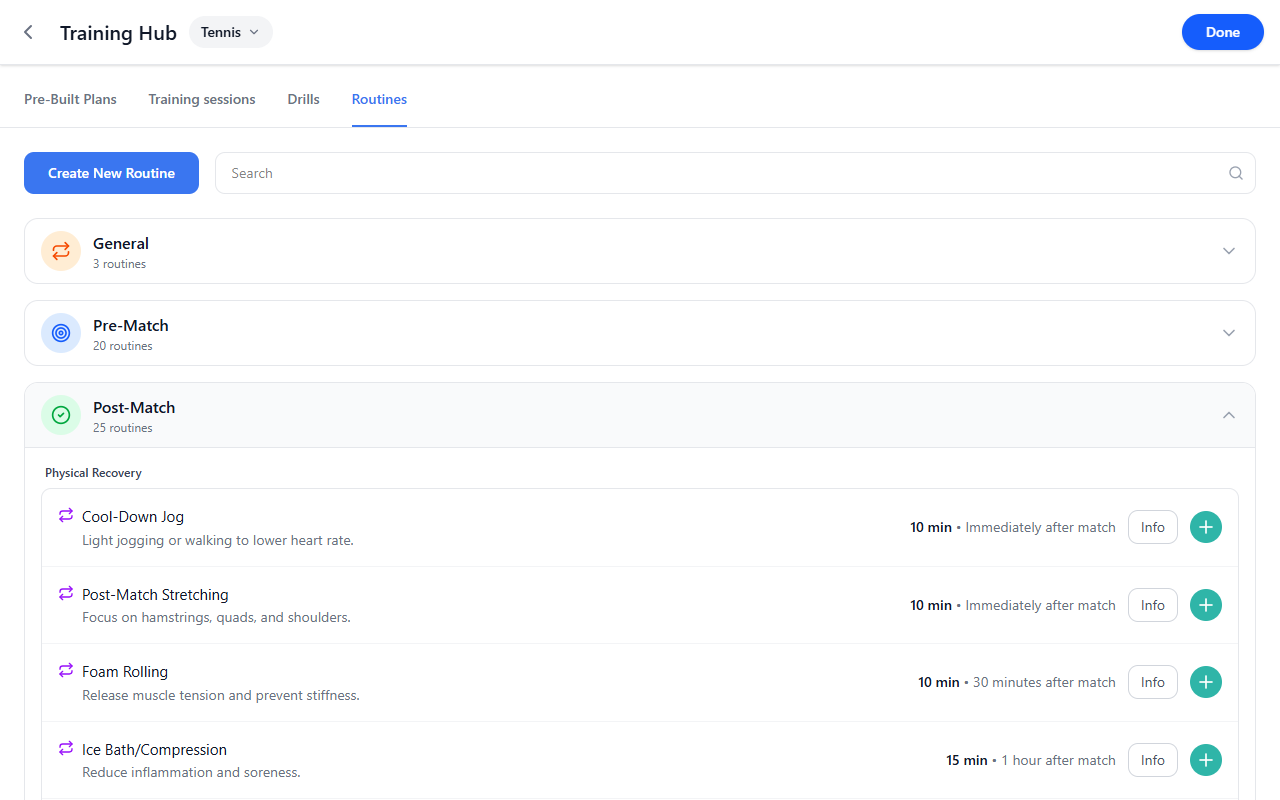
Under Routine → General, you may also see everyday items such as meal logging with optional photo capture when that experience is enabled for your account.
Other — Enter a name, confirm, then continue (usually toward location).
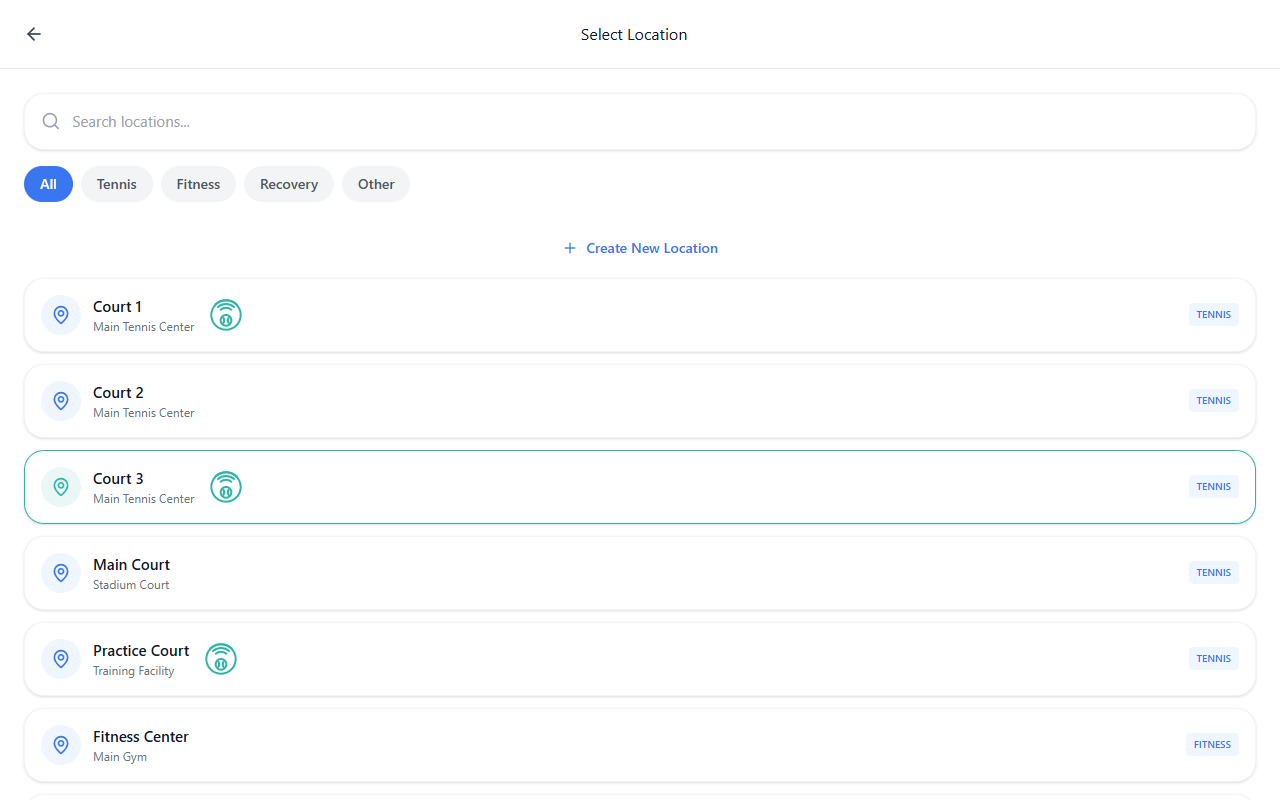
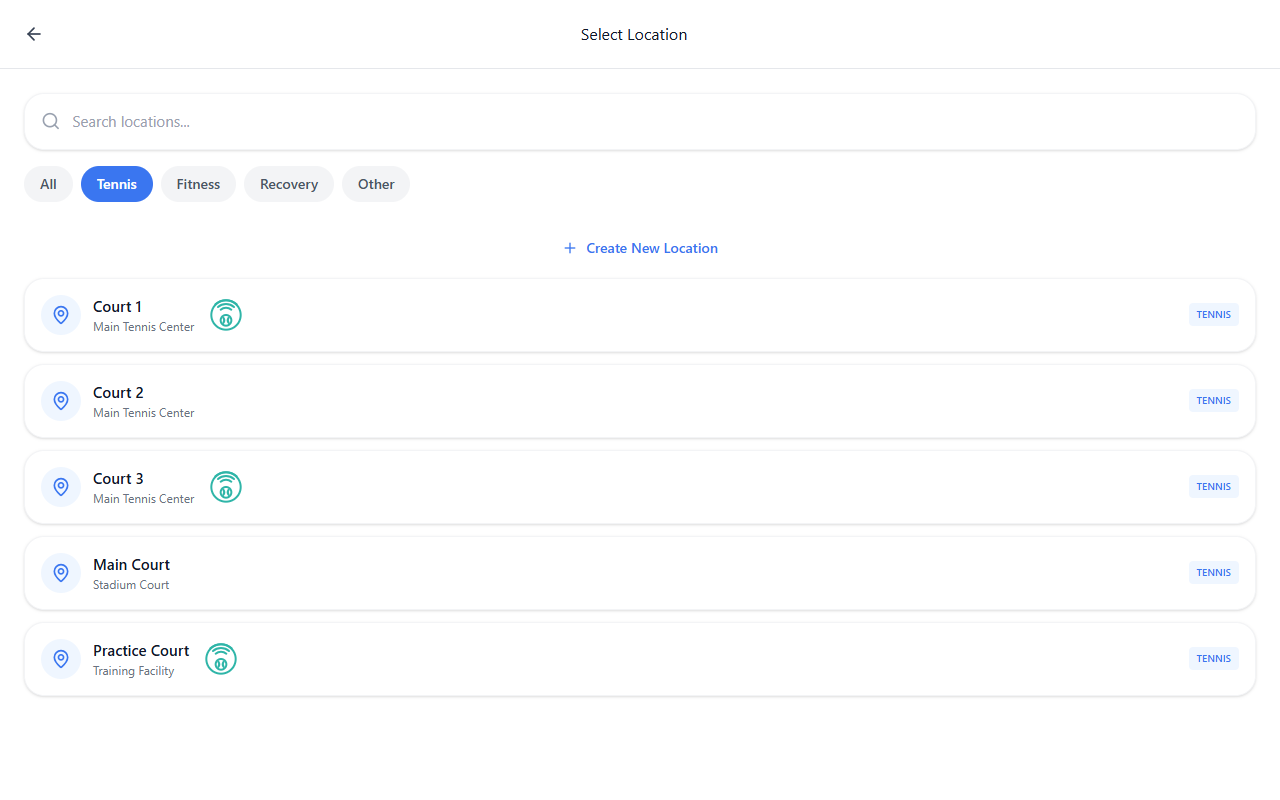
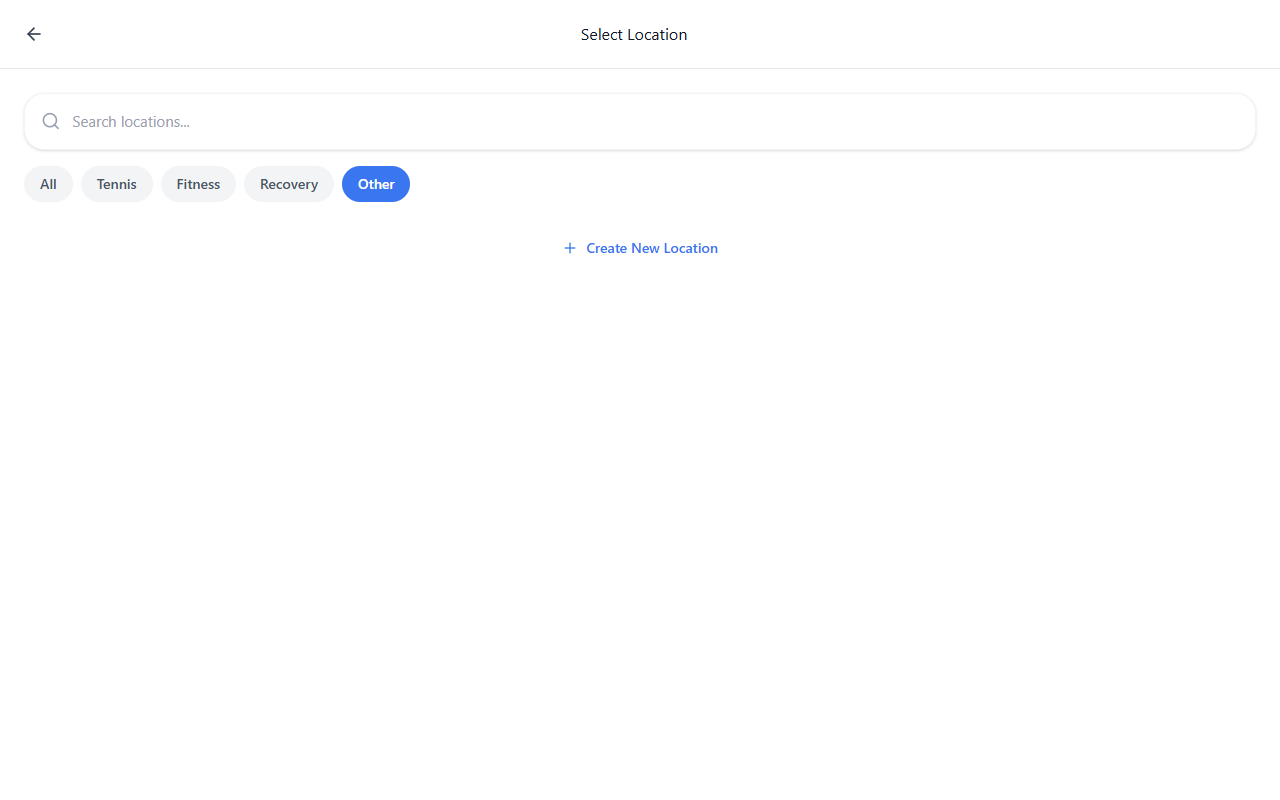
4. Pick a location (when asked)
Select Location (or similar) is where you choose where the session happens—often with tabs such as Courts and Other. Pick what matches your session. Venue lists and map pins can differ by club; use what you see on screen.
5. Save
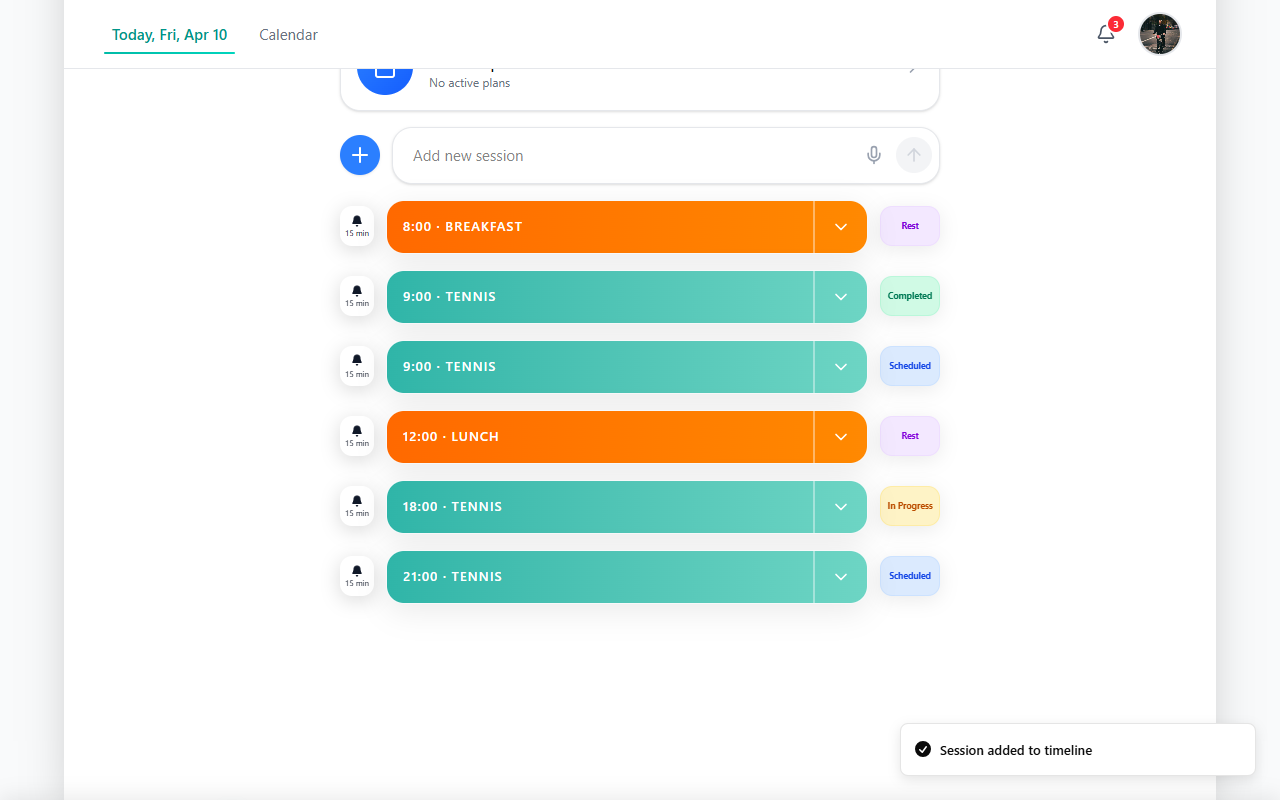
Tap Save. Return to Today and scroll the timeline—you should see a new row for the session.
What happens next
The session sits on Today so you and your coach can see what is planned and what is done. From here you can open Logbook for history, Training Hub for more drills and routines, Smart Court when you train on court with connected capture, or Analytics for a broader view of progress.
Tips
- If you do not see +, scroll until the Add new session row is fully on screen.
- After Routine, you may still set location in a later step—follow the headings on each screen.
- Other names the session for this entry; organization-wide custom types depend on your club’s settings when available.
Related guides
- For the full Today layout (calendar, timeline, reminders, Development Plans), open Today.
- For Match Play (location, participants, optional training plan), open Schedule a match.
- To emphasize drills, routines, and Training Hub when scheduling practice, open Schedule a Training Session.
- To review history and events, open Logbook.
- To browse drills, routines, and search the catalog, open Training Hub.
- For weekly templates and Development Plans, open Development Plans.
- For on-court session start from Smart Court, open Smart Court or Smart Court: Start New Session.
- For how the main areas fit together, see Interface overview or Usage scenarios.